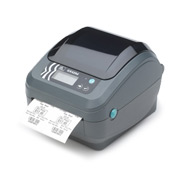
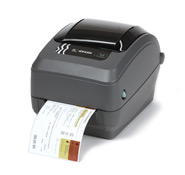
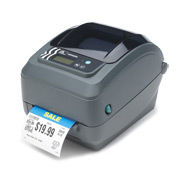
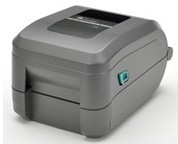
Compact Zebra G-Series desktop printers can print media up to 4 inches wide, offering extremely fast printing speeds and top-notch printing performance.
Whether it’s the basic GK model or the feature-rich GX model, G-Series printers consistently demonstrate reliability, ruggedness, and flexibility, meeting virtually all small to medium volume printing applications and budget requirements.
The Zebra GX printer is the most feature-rich desktop thermal printer available. It offers faster first-sign-out speeds, printing up to 6 inches per second, making it the fastest desktop printer on the market today. Extensive connectivity options—USB/serial/parallel interfaces, 10/100 Ethernet, and an upcoming wireless interface—ensure easy integration with various systems. Each connectivity option includes an LCD panel that clearly displays wireless connection options, prompts, and connection status. Furthermore, this model includes components that allow for flexible media control, such as a detachable sensor, peeler, and cutter, along with a 300 dpi display, enabling the GX printer to fully meet the requirements of a wide range of applications and environments.
The Zebra GX420d direct-heating thermal printer is an ultra-compact printer suitable for space-constrained workplaces, printing at 6 inches per second with a resolution of 203 dpi. It offers a variety of connectivity options, including standard USB/serial/parallel interfaces, 802.11b/g or Bluetooth® wireless connectivity, and 10/100 Ethernet. Optional paper cutter, peeler, and adjustable black mark sensor further enhance media selection and application flexibility.
Zebra GX420d Detailed Specifications
Standard ● Printing method: Thermal printing ● Resolution: 203 dpi (8 dots/mm) ● Memory: 8MB SDRAM, 4MB Flash, 64MB (68MB total) flash memory with RTC (optional) ● Maximum print width: 104mm ● Maximum print speed: 6 inches/second (152 mm/second) ● 32-bit RISC processor ● 4 MB flash memory—including 1.5.0 MB of user-available non-volatile memory storage for storing downloadable content
Electrical Parameters ● 100-240 VAC, 50-60 Hz universal power supply with power parameter correction ● Serial RS232, USBV1.1, parallel port ● Optional: 10/100 internal Ethernet (replaces the parallel port) ● Optional: 802.11b/g wireless connectivity with LCD display (replaces the parallel port) ● Optional: Bluetooth wireless connectivity with LCD display (replaces the parallel port) ● 10/100 internal Ethernet (replaces the serial port)
Labels and Ribbons ● Maximum Media Roll Size: Outer core diameter 5 inches/127 mm, Inner core diameter 0.5 inches/12.7 mm ● Media Thickness (Labels and Backing Paper): 0.003 inches/0.076 mm to 0.075 inches/0.2 mm ● Media Width (Labels and Backing Paper): 0.75 inches/19 mm to 4.25 inches/108 mm ● Media Length (Labels and Backing Paper): 0.38 inches/9.7 mm to 39 inches/991 mm (using non-continuous paper) ● Media Type: Continuous paper, die-cut paper, or black label paper ● For optimal print quality and printer performance, it is recommended to use sensitive consumables.
Fonts/Graphics/Symbols ● 16 built-in extensible ZPLII bitmap fonts ● 1 built-in scalable ZPL font ● 5 built-in extensible ELP2 fonts ● Supports native OpenType fonts, compatible with multilingual on-demand thermal printers Unicode including Monotype Imaging Inc’s UFST ● Supports user-defined fonts and graphics—including custom logos ● Linear barcodes: Code 11, Code 39, Code 93, Code 128 (with subsets A/B/C and UCC Case C Codes), ISBT-128, UPC-A, UPC-E, EAN-8, EAN-13, UPC and EAN 2 or 5-bit extensions, Plessey, Postnet, Standard 2-of-5, Industrial 2-of-5, Interleaved 2-of-5, Logmars, MSI, Codabar, Planet Code ● Two-dimensional barcodes: Codablock, PDF417, Code 49, DataMatrix, MaxiCode, QR Code, MicroPDF417, TLC39, GS1 DataBar (RSS), Aztec
ZebraLink Solutions ● ZebraDesigner Pro/ZebraDesigner/ZebraNet Utilities v 7.0/ZebraNet Bridge Enterprise/Zebra Universal Driver ● ZebraNet 10/100 Print Server ● ZPL and EPL Programming Languages
Optional Features : ● 64MB Flash Memory with Real-Time Clock (68MB Total) ● 10/100 Internal Ethernet Connectivity ● 802.11b/g Wireless Connectivity with LCD Display ● Bluetooth Wireless Connectivity with LCD Display ● Adjustable Media Sensor ● Paper Cutter for Various Media Types ● Frequency Segmenter – Label Peeling and Delivery Using a Label Pickup Sensor ● Asian Font Kit
Compact Zebra G-Series desktop printers can print media up to 4 inches wide, offering extremely fast printing speeds and top-notch printing performance.
Whether it’s the basic GK model or the feature-rich GX model, G-Series printers consistently demonstrate reliability, ruggedness, and flexibility, meeting virtually all small to medium volume printing applications and budget requirements.
The Zebra GX printer is the most feature-rich desktop thermal printer available. It offers faster first-sign-out speeds, printing up to 6 inches per second, making it the fastest desktop printer on the market today. Extensive connectivity options—USB/serial/parallel interfaces, 10/100 Ethernet, and an upcoming wireless interface—ensure easy integration with various systems. Each connectivity option includes an LCD panel that clearly displays wireless connection options, prompts, and connection status. Furthermore, this model includes components that allow for flexible media control, such as a detachable sensor, peeler, and cutter, along with a 300 dpi display, enabling the GX printer to fully meet the requirements of a wide range of applications and environments.
The Zebra GX430t direct-heating/thermal transfer desktop printer features a 300dpi printhead, enabling it to print crisp, high-quality 2D barcodes, fine text, and complex graphics, making it ideal for printing high-density data on small labels. The Zebra GX430t boasts a user-friendly ribbon loading system. It prints at 4 inches per second with a 300dpi resolution. It offers a variety of connectivity options, including standard USB, serial, and parallel interfaces, as well as 802.11b/g or Bluetooth wireless connectivity and 10/100 Ethernet. Optional paper cutters, peelers, and adjustable black mark sensors provide greater flexibility in media selection and application, meeting the needs of various applications and industries.
Zebra GX430t Detailed Specifications
Standard ● Printing method: Thermal transfer printing or thermal printing ● Resolution: 300 dpi (12 dots/mm) ● Memory: 8MB SDRAM, 4MB Flash, 64MB (68MB total) flash memory with RTC (optional) ● Maximum print width: 104mm ● Maximum print speed: 4 inches/second (102 millimeters/second) ● 32-bit RISC processor ● 4 MB flash memory—including 1.5MB of user-available non-volatile memory storage for storing downloadable content
Electrical Parameters ● 100-240 VAC, 50-60 Hz universal power supply with power parameter correction ● Serial RS232, USBV1.1, parallel port ● Optional: 10/100 internal Ethernet (replaces the parallel port) ● Optional: 802.11b/g wireless connectivity with LCD display (replaces the parallel port) ● Optional: Bluetooth wireless connectivity with LCD display (replaces the parallel port) ● 10/100 internal Ethernet (replaces the serial port)
Labels and Ribbons ● Maximum Media Roll Size: Outer core diameter 5 inches/127 mm, Inner core diameter 0.5 inches/12.7 mm ● Media Thickness (Labels and Backing Paper): 0.003 inches/0.076 mm to 0.075 inches/0.2 mm ● Media Width (Labels and Backing Paper): 0.75 inches/19 mm to 4.25 inches/108 mm ● Media Length (Labels and Backing Paper): 0.38 inches/9.7 mm to 39 inches/991 mm (using non-continuous paper) ● Media Type: Continuous paper, die-cut paper, or black label paper ● For optimal print quality and printer performance, it is recommended to use sensitive consumables. ● It is recommended that the ribbon width be at least the same as the media width. ● Ribbon width: 1.33 inches/33.8 mm to 4.3 inches/110 mm ● Standard ribbon length: 244 inches/74 meters; 1:1 media spool to ribbon ratio available ● Ribbon setup: Ink side of the ribbon is wound outwards
Fonts/Graphics/Symbols ● 16 built-in extensible ZPLII bitmap fonts ● 1 built-in scalable ZPL font ● 5 built-in extensible ELP2 fonts ● Supports native OpenType fonts, compatible with multilingual on-demand thermal printers Unicode including Monotype Imaging Inc’s UFST ● Supports user-defined fonts and graphics—including custom logos ● Linear barcodes: Code 11, Code 39, Code 93, Code 128 (with subsets A/B/C and UCC Case C Codes), ISBT-128, UPC-A, UPC-E, EAN-8, EAN-13, UPC and EAN 2 or 5-bit extensions, Plessey, Postnet, Standard 2-of-5, Industrial 2-of-5, Interleaved 2-of-5, Logmars, MSI, Codabar, Planet Code ● Two-dimensional barcodes: Codablock, PDF417, Code 49, DataMatrix, MaxiCode, QR Code, MicroPDF417, TLC39, GS1 DataBar (RSS), Aztec
ZebraLink Solutions ● ZebraDesigner Pro/ZebraDesigner/ZebraNet Utilities v 7.0/ZebraNet Bridge Enterprise/Zebra Universal Driver ● ZebraNet 10/100 Print Server ● ZPL and EPL Programming Languages
Optional Features : ● 64MB Flash Memory with Real-Time Clock (68MB Total) ● 10/100 Internal Ethernet Connectivity ● 802.11b/g Wireless Connectivity with LCD Display ● Bluetooth Wireless Connectivity with LCD Display ● Adjustable Media Sensor ● Paper Cutter for Various Media Types ● Frequency Segmenter – Label Peeling and Delivery Using a Label Pickup Sensor ● Asian Font Kit
Compact Zebra G-Series desktop printers can print media up to 4 inches wide, offering extremely fast printing speeds and top-notch printing performance.
Whether it’s the basic GK model or the feature-rich GX model, G-Series printers consistently demonstrate reliability, ruggedness, and flexibility, meeting virtually all small to medium volume printing applications and budget requirements.
The Zebra GX printer is the most feature-rich desktop thermal printer available. It offers faster first-sign-out speeds, printing up to 6 inches per second, making it the fastest desktop printer on the market today. Extensive connectivity options—USB/serial/parallel interfaces, 10/100 Ethernet, and an upcoming wireless interface—ensure easy integration with various systems. Each connectivity option includes an LCD panel that clearly displays wireless connection options, prompts, and connection status. Furthermore, this model includes components that allow for flexible media control, such as a detachable sensor, peeler, and cutter, along with a 300 dpi display, enabling the GX printer to fully meet the requirements of a wide range of applications and environments.
The Zebra GX420t direct heating/thermal transfer printer features a user-friendly ribbon loading system. It prints at 6 inches per second with a resolution of 203 dpi. It offers a variety of connectivity options, including standard USB, serial, and parallel interfaces, as well as 802.11b/g or Bluetooth wireless connectivity and 10/100 Ethernet. Optional paper cutter, peeler, and adjustable black mark sensor options provide greater flexibility in media selection and application, meeting the needs of various applications and industries.
Zebra GX420t Detailed Specifications
Standard ● Printing method: Thermal transfer printing or thermal printing ● Resolution: 203 dpi (8 dots/mm) ● Memory: 8MB SDRAM, 4MB Flash, 64MB (68MB total) flash memory with RTC (optional) ● Maximum print width: 104mm ● Maximum print speed: 6 inches/second (152 mm/second) ● 32-bit RISC processor ● 4 MB flash memory—including 1.5.0 MB of user-available non-volatile memory storage for storing downloadable content
Electrical Parameters ● 100-240 VAC, 50-60 Hz universal power supply with power parameter correction ● Serial RS232, USBV1.1, parallel port ● Optional: 10/100 internal Ethernet (replaces the parallel port) ● Optional: 802.11b/g wireless connectivity with LCD display (replaces the parallel port) ● Optional: Bluetooth wireless connectivity with LCD display (replaces the parallel port) ● 10/100 internal Ethernet (replaces the serial port)
Labels and Ribbons ● Maximum Media Roll Size: Outer core diameter 5 inches/127 mm, Inner core diameter 0.5 inches/12.7 mm ● Media Thickness (Labels and Backing Paper): 0.003 inches/0.076 mm to 0.075 inches/0.2 mm ● Media Width (Labels and Backing Paper): 0.75 inches/19 mm to 4.25 inches/108 mm ● Media Length (Labels and Backing Paper): 0.38 inches/9.7 mm to 39 inches/991 mm (using non-continuous paper) ● Media Type: Continuous paper, die-cut paper, or black label paper ● For optimal print quality and printer performance, it is recommended to use sensitive consumables. ● It is recommended that the ribbon width be at least the same as the media width. ● Ribbon width: 1.33 inches/33.8 mm to 4.3 inches/110 mm ● Standard ribbon length: 244 inches/74 meters; 1:1 media spool to ribbon ratio available ● Ribbon setup: Ink side of the ribbon is wound outwards
Fonts/Graphics/Symbols ● 16 built-in extensible ZPLII bitmap fonts ● 1 built-in scalable ZPL font ● 5 built-in extensible ELP2 fonts ● Supports native OpenType fonts, compatible with multilingual on-demand thermal printers Unicode including Monotype Imaging Inc’s UFST ● Supports user-defined fonts and graphics—including custom logos ● Linear barcodes: Code 11, Code 39, Code 93, Code 128 (with subsets A/B/C and UCC Case C Codes), ISBT-128, UPC-A, UPC-E, EAN-8, EAN-13, UPC and EAN 2 or 5-bit extensions, Plessey, Postnet, Standard 2-of-5, Industrial 2-of-5, Interleaved 2-of-5, Logmars, MSI, Codabar, Planet Code ● Two-dimensional barcodes: Codablock, PDF417, Code 49, DataMatrix, MaxiCode, QR Code, MicroPDF417, TLC39, GS1 DataBar (RSS), Aztec
ZebraLink Solutions ● ZebraDesigner Pro/ZebraDesigner/ZebraNet Utilities v 7.0/ZebraNet Bridge Enterprise/Zebra Universal Driver ● ZebraNet 10/100 Print Server ● ZPL and EPL Programming Languages
Optional Features : ● 64MB Flash Memory with Real-Time Clock (68MB Total) ● 10/100 Internal Ethernet Connectivity ● 802.11b/g Wireless Connectivity with LCD Display ● Bluetooth Wireless Connectivity with LCD Display ● Adjustable Media Sensor ● Paper Cutter for Various Media Types ● Frequency Segmenter – Label Peeling and Delivery Using a Label Pickup Sensor ● Asian Font Kit
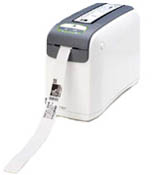
The Zebra HC100 Patient ID Solution is an all-in-one printing solution that integrates the reliable HC100 thermal printer. This printer features a convenient wristband cassette and uses the only antimicrobial protective wristbands currently available on the market.
The HC100 is easy to use; healthcare personnel can operate it with minimal training. After placing the wristband cassette into the HC100 printer, the printer automatically checks the wristband size, adjusts it accordingly, and then prints the wristband.
The wristbands are reliable, durable, and tested to withstand water, soap, foam, alcohol, and other common corrosive liquids in the medical environment. The barcodes on the Z-Band wristbands remain scannable from the time the patient wears the wristband until discharge.
Zebra HC100 Standard Features Quick and easy wristband loading Automatic wristband loading—avoids touching the wristband when loading or removing it Print resolution: 300 dpi Print speed: 2 inches/second Thermal printing allows for barcode, text, and graphics Sleeve frame, impact-resistant plastic ZPL or ZPLII programming language 32-bit RISC processor 16MB Std SDRAM (4MB available space) 8MB Std Flash (2MB available space) Zebra E3 printhead energy control Dual communication interfaces: serial and USB Range sensor for tracking print distance Indicator light for insufficient/out-of-use wristbands Tool -free printhead and roller replacement Unicode compatible, supports multilingual printing XML-based printing—allows information systems to communicate via XML Instant wristband adjustment—prevents wristband waste 16 built-in expandable bitmap fonts One built-in expandable font Standard tear-out mode function
Zebra HC100 Print Specifications Print resolution: 300 dpi Memory: 16MB Std SDRAM, 8MB Std SDRAM Std flash memory, 64MB flash memory (factory-installed option) Maximum print length: 558 mm Minimum print length: 76 mm 3 wristband widths: 19.05 mm, 25.4 mm, 30.16 mm Print speed: 51 mm/s Wristband sensors: “Forward”, “Wristband insufficient”, “Wristband exhausted” sensors
Zebra HC100 Network connectivity options Ethernet—ZebraNet 10/100 Internal Print Server (factory-installed) Wireless 802.11b/g—Advanced wireless security including WPA and WPA2 (factory-installed)
Zebra HC100 Wristband Features The Z-Band wristband is the only wristband on the market with an antimicrobial protective layer. Tests show that the protective layer can protect the wristband from contamination by Staphylococcus aureus, Escherichia coli, Pseudomonas aeruginosa, and methicillin-resistant Staphylococcus aureus. ● Tape Type : Adults, 19.05mm x 279.4mm, White; Adults, 25.4mm x 279.4mm, White, Red, Blue, Yellow, Green, Orange, Pink, Purple; Adults, 30.16mm x 279.4mm, White; Children’s, 25.4mm x 177.8mm, White; Infant, 25.4mm x 152.4mm, White. ● Clip Type: Adults, 30.16mm x 279.4mm, Red, Blue, Yellow, Green, Orange, Pink, Purple Clip; Infant/Children’s, 25.4mm x 177.8mm, Red, Blue, Yellow, Green, Orange, Pink, Purple Clip.
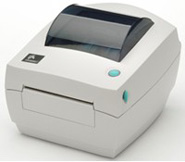
The Zebra GK888d thermal desktop printer offers exceptional performance and reliability for a wide range of low- to medium-volume printing applications.
This space-saving printer features a powerful 32-bit processor for fast label printing, supports both Simplified and Traditional Chinese fonts, and boasts ample memory for storing more images, longer label formats, and faster processing. It also supports both EPL and the powerful ZPL programming language.
The GK888d can be easily integrated into a variety of printing applications, including: Government – Asset management, document management, evidence tracking; Healthcare – Laboratory sample and blood bank labels ; Retail – Price tags and receipt printing ; Manufacturing – Light industrial work-in-process, product, and freight labels ; Transportation and Logistics – Boarding passes, parking permits. The GK888d features serial, parallel, and USB interfaces to meet diverse connectivity needs.
Zebra GK888d Advantages : ● Best price-performance ratio among desktop printers in its class ● Pre-installed Traditional and Simplified Chinese font sets ● Higher performance ● Excellent ease of use and durability
The Zebra GK888d printer features: * Automatic printer language detection and switching between ZPL and EPL programming and multiple label formats. * Industry-leading ribbon loading design. * Color-coded operator controls and media guides. * Onboard Simplified and Traditional Chinese font sets for EPL (888 legacy fonts – GB-2312 and Big 5) and ZPL (GB18030-2000 and Big 5) programming. * Zebra™ Global Print Solution – supports Microsoft Windows keyboard encoding and ANSI, Unicode UTF-8 and UTF 16 (Unicode conversion formats), XML, ASCII (7 and 8 bits used by legacy programs and systems), single and double byte basic font encoding, hexadecimal encoding, and custom character mapping (DAT table creation, font linking, and character remapping). * Improved printer performance: faster printing speeds and a 32-bit processor. * Includes a complete suite of free software applications and drivers for configuring printer settings, designing and printing labels and receipts, obtaining printer status, importing graphics and fonts, sending programming commands, updating firmware, and downloading files. It can also copy printer settings and send graphics, files, fonts, and firmware (updates) to one or more printers connected locally via ZebraNet™ Bridge. * Maintenance reporting is enabled, allowing users to customize items.
Zebra GK888d Detailed Specifications
Printing Specifications ● Printing Method: Thermal ● Resolution: 203 dpi (8 dots/mm) ● Memory: 8MB SDRAM, 8MB Flash (standard) ● Maximum Print Width: 104mm ● Maximum Print Length: 990mm ● Maximum Print Speed: 4 inches/second (102 millimeters/second) ● 32-bit RISC Processor ● Media Sensor: Standard: Fixed transmission and reflective sensors
Electrical Parameters ● Automatic Detection (compliant with PFC specifications) 100-240 VAC, 50-60 Hz ● Serial RS232, USB, Parallel Port ● Optional: 10/100 Internal Ethernet (occupies both serial and parallel ports)
Labels ● Maximum label and backing paper width: 108 mm ● Minimum label and backing paper width: 25.4 mm ● Maximum label and backing paper length: 991 mm ● Maximum media roll diameter: 127 mm ● Core paper roll: 25.4 mm and 38 mm ● Media thickness: 0.08 mm to 0.18 mm ● Media type: roll or folded paper, continuous paper, die-cut paper or black label paper, receipt paper and wristband ● For optimal print quality and printer performance, sensitive consumables are recommended.
Fonts/Graphics/Symbols ● 16 built-in extensible ZPLII bitmap fonts ● 1 built-in scalable ZPL font ● 5 built-in extensible ELP2 fonts ● Supports user-defined fonts and graphics—including custom logos ● Programming language and Chinese font comparison table
programming language
Big5
GB2312
GB18030
EPL
Kai (Font 8)
Sung (Font 8)
none
ZPL
SimSun
Font
type
width
high
spacing
CPI
character
Sung
Simplified
32
32
0*
6.3*
15792
Kai
Traditional Chinese
32
32
0*
6.3*
15793
SimSun
Simplified
twenty four
twenty four
0*
8.5*
30492
SimSun
Traditional Chinese
twenty four
twenty four
0*
8.5*
30492
Note: Spacing of Asian characters is controlled via the `i` command. CPI calculation formula: 203/(32+i), CPI decreases as `i` increases. ● Barcode ratios: 2:1 (no rotation) and 3:1 ● Linear barcodes: Code 11, Code 39, Code 93, Code 128 (including subsets A/B/C and UCC Case C Codes), ISBT-128, UPC-A, UPC-E, EAN-8, EAN-13, UPC and EAN 2 or 5-digit extensions, Plessey, Postnet, Standard 2-of-5, Industrial 2-of-5, Interleaved 2-of-5, Logmars, MSI, Codabar, Planet Code ● Two-dimensional barcodes: Codablock, PDF417, Code 49, DataMatrix, MaxiCode, QR Code, MicroPDF417, TLC39, GS1 DataBar (RSS), Aztec
ZebraLink Solutions ● ZebraDesigner Pro/ZebraDesigner/ZebraNet Utilities v 7.0/ZebraNet Bridge Enterprise/Zebra Universal Driver ● ZebraNet 10/100 Print Server ● ZPL and EPL Programming Languages
Optional Accessories: ● Peeler – Uses a label pickup sensor for label peeling and delivery. ● Paper cutter for various media types. ● ZebraNet 10/100 Print Server – Built-in Ethernet for network communication and printing. ● KDU and KDU Plus – Keyboard display unit for standalone printing applications.
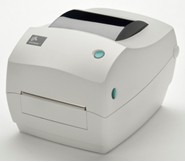
The Zebra GK888t thermal transfer desktop printer offers exceptional performance and reliability for a wide range of low- to medium-volume printing applications.
This space-saving printer features a powerful 32-bit processor for fast label printing, supports both Simplified and Traditional Chinese fonts, and boasts ample memory for storing more images, longer label formats, and faster processing. It also supports both EPL and the powerful ZPL programming language.
The GK888t can be easily integrated into a variety of printing applications, including: Government – Asset management, document management, evidence tracking; Healthcare – Laboratory sample and blood bank labels ; Retail – Price tags and receipt printing ; Manufacturing – Light industrial work-in-process, product, and freight labels ; Transportation and Logistics – Boarding passes, parking permits. The GK888t features serial, parallel, and USB interfaces to meet diverse connectivity needs.
The GK888t printer features: * Automatic printer language detection and switching between ZPL and EPL programming and multiple label formats. * Industry-leading ribbon loading design. * Color-coded operator controls and media guides. * Onboard Simplified and Traditional Chinese font sets for EPL (888 legacy fonts – GB-2312 and Big 5) and ZPL (GB18030-2000 and Big 5) programming. * Zebra™ Global Print Solution – supports Microsoft Windows keyboard encoding and ANSI, Unicode UTF-8 and UTF 16 (Unicode conversion formats), XML, ASCII (7 and 8 bits used by legacy programs and systems), single and double byte basic font encoding, hexadecimal encoding, and custom character mapping (DAT table creation, font linking, and character remapping). * Improved printer performance: faster printing speeds and a 32-bit processor. * Includes a complete suite of free software applications and drivers for configuring printer settings, designing and printing labels and receipts, obtaining printer status, importing graphics and fonts, sending programming commands, updating firmware, and downloading files. It can also copy printer settings and send graphics, files, fonts, and firmware (updates) to one or more printers connected locally via ZebraNet™ Bridge. * Maintenance reporting is enabled, allowing users to customize items.
Zebra GK888t Advantages : ● Best price-performance ratio among desktop printers in its class ● Pre-installed Traditional and Simplified Chinese font sets ● Higher performance ● Excellent ease of use and durability
Zebra GK888t detailed specifications
Printing Specifications ● Printing Method: Thermal or Thermal Transfer ● Resolution: 203 dpi (8 dots/mm) ● Memory: 8MB SDRAM, 8MB Flash (Standard) ● Maximum Print Width: 104mm ● Maximum Print Length: 990mm ● Maximum Print Speed: 4 inches/second (102 millimeters/second) ● 32-bit RISC Processor ● Media Sensor: Standard: Fixed Transmission and Reflective Sensors
Electrical Parameters ● Automatic Detection (compliant with PFC specifications) 100-240 VAC, 50-60 Hz ● Serial RS232, USB, Parallel Port ● Optional: 10/100 Internal Ethernet (occupies both serial and parallel ports)
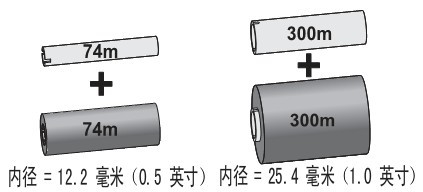
Labels and Ribbons ● Maximum label and backing paper width: 108 mm ● Minimum label and backing paper width: 25.4 mm ● Maximum label and backing paper length: 991 mm ● Maximum media roll diameter: 127 mm ● Core paper roll: 25.4 mm and 38 mm ● Media thickness: 0.08 mm to 0.18 mm ● Media type: roll or folded paper, continuous paper, die-cut paper or black label paper, receipt paper and wristband ● Ribbon outer diameter: 34 mm, 74-meter ribbon ● Standard length: 74 meters ● Ratio: 1:1 (ribbon roll to media roll ratio) ● Ribbon width: The ribbon must be at least the same width as the media, 33.8 mm to 110 mm ● Core inner diameter: 12.7 mm ● For optimal print quality and printer performance, it is recommended to use sensitive consumables.
Fonts/Graphics/Symbols ● 16 built-in extensible ZPLII bitmap fonts ● 1 built-in scalable ZPL font ● 5 built-in extensible ELP2 fonts ● Supports user-defined fonts and graphics—including custom logos ● Programming language and Chinese font comparison table
programming language
Big5
GB2312
GB18030
EPL
Kai (Font 8)
Sung (Font 8)
none
ZPL
SimSun
Font
type
width
high
spacing
CPI
character
Sung
Simplified
32
32
0*
6.3*
15792
Kai
Traditional Chinese
32
32
0*
6.3*
15793
SimSun
Simplified
twenty four
twenty four
0*
8.5*
30492
SimSun
Traditional Chinese
twenty four
twenty four
0*
8.5*
30492
Note: Spacing of Asian characters is controlled via the `i` command. CPI calculation formula: 203/(32+i), CPI decreases as `i` increases. ● Barcode ratios: 2:1 (no rotation) and 3:1 ● Linear barcodes: Code 11, Code 39, Code 93, Code 128 (including subsets A/B/C and UCC Case C Codes), ISBT-128, UPC-A, UPC-E, EAN-8, EAN-13, UPC and EAN 2 or 5-digit extensions, Plessey, Postnet, Standard 2-of-5, Industrial 2-of-5, Interleaved 2-of-5, Logmars, MSI, Codabar, Planet Code ● Two-dimensional barcodes: Codablock, PDF417, Code 49, DataMatrix, MaxiCode, QR Code, MicroPDF417, TLC39, GS1 DataBar (RSS), Aztec
ZebraLink Solutions ● ZebraDesigner Pro/ZebraDesigner/ZebraNet Utilities v 7.0/ZebraNet Bridge Enterprise/Zebra Universal Driver ● ZebraNet 10/100 Print Server ● ZPL and EPL Programming Languages
Optional Accessories: ● Peeler – Uses a label pickup sensor for label peeling and delivery. ● Paper cutter for various media types. ● ZebraNet 10/100 Print Server – Built-in Ethernet for network communication and printing. ● KDU and KDU Plus – Keyboard display unit for standalone printing applications.
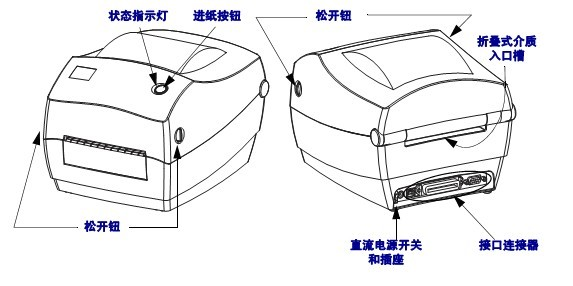
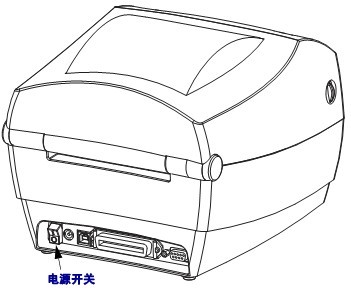
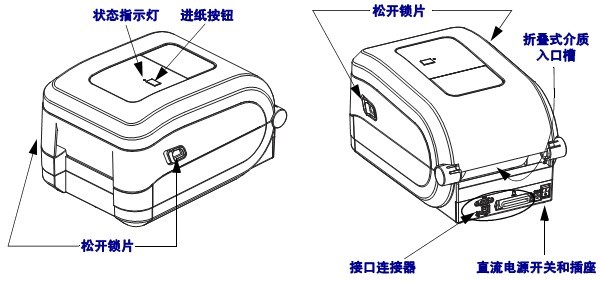
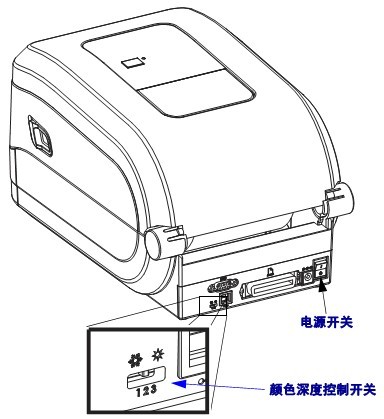
1、Zebra_GK888t barcode printer introduction to each part 1.1 Status indicator light/Paper feed button/Lock release/Interface connector/Folding medium entrance slot/DC power switch and socket
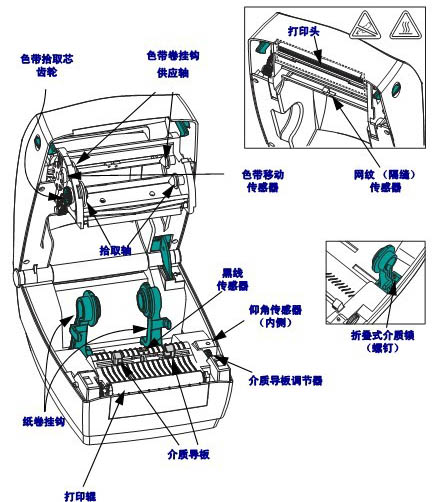
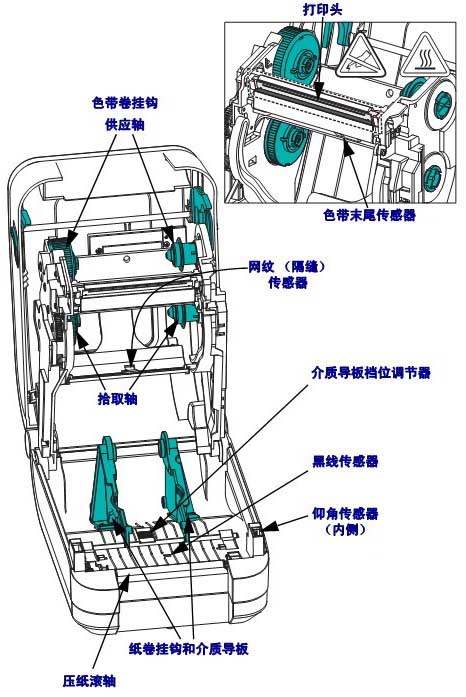
1.2 Ribbon take-up core gear/Ribbon roll hook supply shaft/Take-up shaft/Roll hook/Print roller/Medium guide plate/Medium guide plate adjuster/Elevation sensor/Folding medium lock/Black line sensor/Ribbon movement sensor/Print head/Screen sensor
1.3 Power switch
Caution:The printer power should be turned off before connecting or disconnecting the communication cable and power cable
2. Zebra GK888t Barcode Printer Installation Instructions 2.1 Loading Roll Media When loading media, roll media must be placed in the media supply rack, and the correct media suitable for the required print type must be used. ① Turn on the printer. Note that you need to pull the release knob lever forward of the printer; ② Rotate the media guide adjustment knob backward of the printer to open the media guide; ③ Open the roll media hook. Use your other hand to pull the media guide open, place the roll media on the paper roll hook, and release the guide. Adjust the position of the roll media so that the print side is facing up as it passes over the print (drive) roller; ④ Pull the media out so that it extends from the front of the printer. Check that the roll media can rotate freely. Do not place roll media at the bottom of the media compartment. Check that the print side of the media is facing up; ⑤ Push the media under the two media guides. Turn the media guide adjustment knob forward to close the media guides. The guide plate should just touch the edge of the media, but should not restrict its movement;
⑥ If the thermal transfer ribbon is not required, close the top cover. Note that the top cover lock should be released, the top cover lowered, and pressed down until the release button clicks into place; ⑦ If the printer is powered on, press the “Feed” button to feed the media.
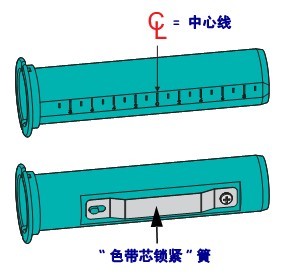
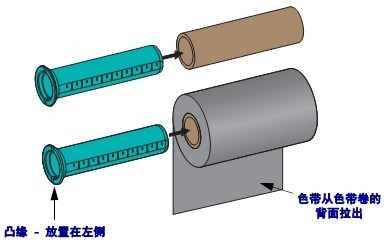
2.2 Loading the Thermal Transfer Ribbon Requirements for the thermal transfer ribbon: ● The media and ribbon type should match for optimal printing results. ● To protect the print head and avoid wear, use a ribbon wider than the media . ● Do not install the ribbon in the printer for thermal printing. ● Do not use ribbon rolls with damaged grooves, worn edges, broken pieces, or shredded material. The ribbon core grooves should be intact to secure the ribbon core to the spindle; otherwise, the ribbon core will slip, causing the ribbon to curl, incorrect ribbon end sensing, or other intermittent errors.
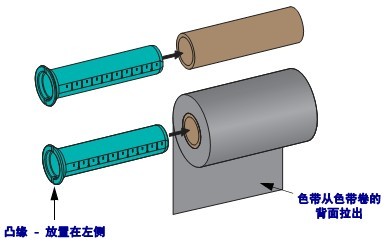
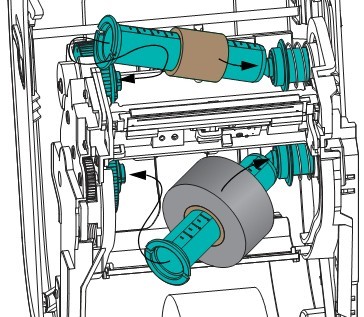
Installation steps: ① With the printer on, pass the ribbon through the ribbon holder. Press the right end of the supply roller onto the spring-loaded supply hub. Align the left side of the ribbon core notch with the left feed roller (spindle) hub spoke. Rotate the ribbon spindle until the notch aligns and lock it into the left side of the feed hub. ② Place the empty ribbon core on the printer’s pickup spindle. Rotate the ribbon core until the notch aligns and lock it into the left side of the pickup hub. You can find the first ribbon pickup spindle core in the box. You can then use the empty feed core to pick up the next roll of ribbon. ③ Attach the ribbon to the pickup core. Use the adhesive strip on the new pickup roller, or use other tape. It is essential to align the ribbon when attaching it to the ribbon core so that it winds straight onto the ribbon core and aligns with the consumable. ④ Rotate the ribbon pickup gear counterclockwise (top to back) to tighten the slack portion of the ribbon. ⑤ Check that the media is loaded and the printer is ready to print, then close the printer cover. Note that you need to loosen the top cover lock, lower the top cover, and press down until the release button clicks into place. ⑥ If the printer is powered on, press the “Feed” button to allow the printer to feed at least 10 cm (4 inches) of media, tighten any loose sections and ribbon wrinkles, and align the ribbon on the spindle. ⑦ Change the print mode setting from thermal to thermal transfer to set the printer temperature profile suitable for thermal transfer media. This setting can be done through the printer driver, application software, or printer programming commands. * To control printer operation using ZPL programming commands, see “Media Type” (^MT) ZPL II commands. * To control printer operation using “EPL Page Mode,” see “Options” (O) EPL commands. ⑧ To verify that the print mode has switched from thermal to thermal transfer, print the configuration label using the Print Test (Printer Configuration) label. The “PRINT METHOD” on the printer configuration status label should be “THERMAL-TRANS.” Your printer is now ready to print.
2.3 Print Test (Printer Configuration) Label Before connecting the printer to the computer, ensure that the printer is in normal working order. A configuration status label can be printed for confirmation. ① Ensure the media is installed correctly and the printer cover is closed. If the printer power is not yet on, turn it on. If the printer status indicator is flashing green during initialization (paused state), press the “Paper Feed” button to set the printer to “Ready” mode. If the printer status indicator does not turn continuously green, please refer to the subsequent troubleshooting. ② Press the “Paper Feed” button two to three times to allow the printer to perform calibration based on the loaded media. During this process, the printer may feed multiple labels. ③ While the status indicator remains green, press and hold the “Paper Feed” button until the status indicator flashes once. ④ Release the “Paper Feed” button. A configuration label will be printed.
2.4 Pre-install Windows Printer Driver Zebra has changed its installation method. For use with the printer via a PC-based Windows operating system, it is recommended to pre-install at least the ZebraDesigner Windows driver to take advantage of its ease of use and the convenience of Windows XP SP2 and later versions. Zebra provides Zebra Setup Utilities (ZSU), a suite of tools that includes Zebra printer drivers, utilities, and communication and installation tools for most Windows PC operating systems. Zebra Setup Utilities and Zebra Windows printer drivers are available on the user CD, or the latest version can be found on the Minyong website (www.chongshang.com.cn). Zebra Desugber drivers and Zebra Setup Utilities (which include the drivers) support Windows 7, Windows Vista, Windows XP, Windows 2000, Windows Server 2008, and Windows Server 2003 operating systems. The drivers support both 32-bit and 64-bit Windows operating systems and are Microsoft certified. Zebra Desugber drivers and Zebra Setup Utilities support the following printer communication interfaces: USB, parallel port, serial port, wired and wireless Ethernet, and Bluetooth (using the Bluetooth virtual printer port). Zebra Setup Utilities should be installed first, and then the printer connected to the PC should be powered on. Zebra Setup Utilities will prompt you to power on the printer; continue with the following steps to complete the printer installation. 2.4.1 Plug and Play (PnP) Printer Detection and Windows Operating System The updated Windows operating system can automatically detect printers when connected via USB. Depending on hardware configuration and Windows version, printers can be detected via plug-and-play when connected via USB, parallel port, or serial port. Printer drivers no longer support serial port plug-and-play installation. The printer’s serial port PC interface configuration must support and have bidirectional communication capabilities for plug-and-play to work. The first time you connect the printer to your PC, the operating system will automatically launch the “Add New Hardware” wizard. If Zebra Setup Utility includes a pre-installed driver suite, the printer driver will be installed automatically. Go to the Windows Printers directory, right-click, select “Properties,” and click the “Print Test Page” button to verify successful installation. If you reconnect the printer via USB or power on the printer after your PC has restarted, the Windows operating system will detect and reconnect the previously installed printer. Ignore the warning about the new device detected and close the taskbar notification. Wait a few seconds for the operating system and driver software to match; the warning message will disappear, and the printer is now ready to print. 2.4.2 Universal Serial Bus (USB) Device Communication: When using the USB interface, the printer is the terminal device (not the host or hub). Note: Scanners, scales, or other data input (terminal) devices must use the serial port (not the USB port) to send data to the printer. 2.4.3 Serial Port and Windows Operating System: Except for data flow control settings, the default settings for serial port communication in the Windows operating system match the printer’s default settings. Windows’ default data flow control is set to NONE; the GK888t printer requires data flow control to be set to Hardware. Note: The GK888t printer does not currently support Plug and Play device detection for the Windows serial port. 2.4.4 Ethernet: The GK888t printer options offer various methods and applications to help the printer connect to a network (WAN or LAN) and configure wired and wireless (Wi-Fi) printers. The Zebra Setup Utility configuration wizard allows the printer to connect to a shared network using its IP address via a Windows-based system. The printer has an internal webpage that makes printer and network configuration easy; this webpage can be accessed using a web browser via the printer’s IP address. The free version of ZebraNet Bridge software allows users to centrally deploy, manage, and monitor Zebra printers. Zebra’s automatic printer discovery feature can discover up to three printers from any location on a pre-set PC screen across the global network. ZebraNet Bridge Enterprise can be purchased to manage a large number of Zebra printers.
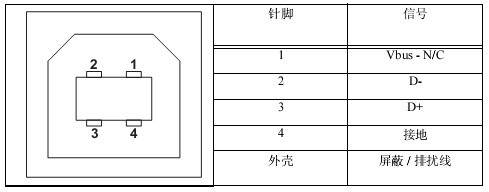
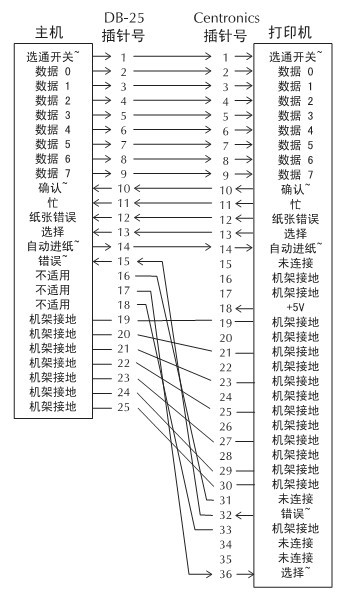
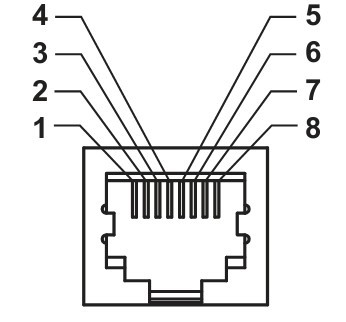
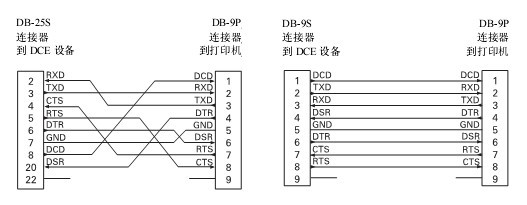
2.5 Connecting the Printer to a Computer The Zebra GK888t printer supports a variety of interface options and configurations. These include: Universal Serial Bus (USB) interface, RS232 serial interface, parallel interface (IEEE1284), and 10/100 Ethernet. Caution: When connecting the interface cable, the power switch should be in the off position. Before connecting or disconnecting the communication cable, the power cord must be plugged into the power supply unit and power outlet on the back of the printer. Interface Cable Requirements: The data cable must be fully shielded and have a metal or metallized connector housing. Shielded cables and connectors must be used to prevent radiation and received electrical noise. To minimize the level of electrical noise pickup in the cable, the following should be done: ● Use the shortest possible data cable (1.83 meters is recommended) ● Do not tightly bundle the data cable and power cord together ● Do not tie the data cable to the power cord conduit
2.6 After connecting the printer, you can now establish basic communication with the printer and test printer communication, and then install other printer-related applications, drivers, or utilities. Testing the operation of the printing system is a relatively simple task. For Windows operating systems, Zebra Setup Utility or the Windows “Printers and Faxes” control panel can operate and print test labels. For non-Windows operating systems, a (~WC) command can be used to copy a basic ASCII text file to print a configuration status label. 2.6.1 Test printing using Zebra Setup Utility ① Open Zebra Setup Utility ② Click the icon of the newly installed printer, select the printer, and enable the printer configuration button below the printer in the window. ③ Click the “Open Printer Tools” button. ④ In the “Print” tab window, click the “Print configuration label” row and click the “Send” button. The printer will print the configuration status label. 2.6.2 Test Printing Using the Windows “Printers and Faxes” Menu
① Click the Windows “Start” menu button and go to “Printers and Faxes,” or go to the “Printers and Faxes” menu in “Control Panel” to open the menu. ② Select the newly installed printer icon, select the printer, and right-click to open the printer’s “Properties” menu. ③ From the printer’s “General” tab window, click the “Print Test Page” button. The printer will print a Windows test page. 2.6.3 Perform a Test Print for an Ethernet Printer Connected to a Network (LAN or WAN) Using the MS-DOS Command Prompt or from the Windows XP “Start” menu ① Create a text file using three ASCII characters: ~WC ② Save the file as: TEST.ZPL (any filename and extension) ③ Read the IP address from the network status printout on the printer’s configuration status label. When connecting to the same LAN or WAN as the printer, type the following in the address bar of your web browser window, and enter: ftp 123.45.67.01 (assuming the IP address is 123.45.67.01). ④ Type the filename, then type “put” and press Enter. For this “test print” file, it should be: put TEST.ZPL 2.6.4. For non-Windows operating systems, use the copy ZPL command file to perform a test print : ① Create a text file using three ASCII characters: ~WC ② Save the file as: TEST.ZPL (any filename and extension) ③ Copy the file to the printer. For DOS environments, send the file to a printer connected to the system’s parallel port; the command is very simple: COPY TEST.ZPL LPT1
3. Zebra GK888t Barcode Printer Operation 3.1 Printer Inactivity or Storage Prolonged storage may cause the print head to stick to the print roller. To avoid this, place a sheet of media (label or paper) between the print head and the print roller when storing the printer. Do not ship the printer with a media roll already installed, as this may damage the printer or media.
3.2 Printing Modes The GK888t printer can operate in different modes and various media configurations: ● Thermal Printing (This mode uses heat-sensitive media for printing) ● Thermal Transfer Printing (This mode uses a ribbon to print on the media using the principle of thermal transfer) ● Standard Tear-Off Mode allows users to peel off labels (or batches of labels) after each label is printed. ● Label Peel-Off Mode: If a label peeler is installed, the label can be peeled off from the backing material during printing, and the next label can be printed immediately after the label is removed. ● Standalone Mode: The printer can print without connecting to a computer serial port when using the automatic label run function (according to programming) or when using a data input device connected to the printer’s parallel port. In this mode, data input devices such as scanners, scales, Zebra KDU Plus, or Zebra KDU (keyboard display unit) can be used. ● Network Shared Printing: Printers equipped with the Ethernet interface option have a built-in print server that can be managed and monitored via the ZebraLink printer configuration webpage and ZebraNet Bridge software.
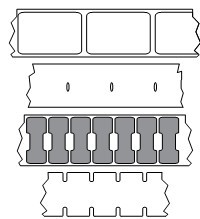
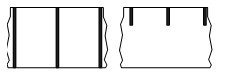
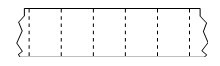
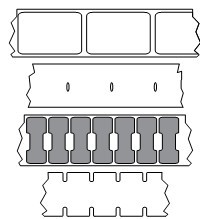
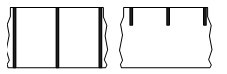
3.3 Types of Printing Media Important Note: For uninterrupted, high-quality printing, Sensitive recommends using Sensitive’s recommended consumables. Specially designed papers, polyethylene, polyester, and vinyl products can improve printer performance and prevent premature printhead wear. The GK888t printer can use various media types: ● Standard Media – Most label non-continuous media use adhesive materials that allow multiple individual labels or continuous labels of a certain length to be attached to a backing. ● Continuous Roll Media – Most continuous roll media are thermal (similar to fax paper) and suitable for receipt or ticket printing. ● Unbacked Media – Unbacked labels have adhesive material, but it is wound on a media core without a backing. The media is typically pre-perforated and may also have black markings on the bottom surface to indicate label separation positions. Unbacked media labels have a special coating on the top layer to prevent labels from sticking together. Printers must be equipped with a special “unbacked” option to use unbacked media and must ensure the media does not stick to the printer. ● Label Material – Labels are typically made of thick paper (maximum 0.19 mm thick). The label material has no adhesive or backing and usually has pre-perforations between each label. ① Non-continuous Roll Media Roll media can be wound on a paper core with a diameter of 12.7 to 38.1 mm. Labels have an adhesive backing that allows them to adhere to the liner. Labels are separated by spacers, notches, cutouts, or black markings. Labels are separated by perforations. Single labels are separated by one or more of the following methods: ◆ Mesh media is separated by spacers, cutouts, or notches.
◆ Black Marker Media uses pre-printed black markings on the back of the media to indicate the label separation positions.
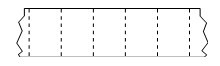
◆ Pre-perforated media has perforations that allow labels or label materials to be easily separated. The media may also have black markings or other separation methods between labels.
② Intermittently folded media: Folded media folded in an alternating manner. Folded media can have the same separation method as intermittent media rolls. The separation position can be located at or near the fold. ③ Continuous roll media: Rolled media can be wound on a paper core with a diameter of 12.7 to 38.1 mm. Continuous roll media does not have gaps, cuts, notches, or black markings to indicate label separation positions. Images can be printed at any position on the label, and individual labels can be cut using a cutter. If using continuous media, a transmissive (gap) sensor should be used so that the printer can detect the delivery of the media.
3.4 Adjusting Print Width The print width must be set in the following situations: ● First time using the printer ● Changing the media width The print width can be set in the following ways: ◆ Windows printer driver or application software such as ZebraDesigner. ◆ With the printer powered on and the top cover closed, press and hold the “Paper Feed” button for a few seconds. The green status indicator light will flash 5 times. Release the button. The printer will adjust the width, printing one frame every 4mm from the minimum print width to the maximum print width. When the printer reaches the desired maximum print width, press the “Paper Feed” button once. Note: Printer drivers and applications may override this setting. ◆ To control printer operation using ZPL programming, see the “Print Width Command” (~PW). ◆ To control printer operation using “EPL Page Mode” programming, see the “Set Label Width” (q) command.
3.5 Adjusting Print Quality Print quality is affected by printhead temperature or density settings, print speed, and the type of media used. Experiment with these settings to find the best combination for your application. You can use the “Configure Print Quality” program in Zebra Setup Utility to set print quality. The relative color depth (or density) setting can be controlled in the following ways: ◆ With the printer powered on and the top cover closed, press and hold the “Paper Feed” button for a few seconds. The green status indicator will flash 6 times. Release the button, and the printer will adjust the depth, starting from the minimum color depth (print density/heat) and ending at the printer’s maximum color depth. Use the ZPL depth setting range value to print a continuous barcode simulation pattern in increments of 4. If the pattern is clear and valid, press the “Paper Feed” button once. Do not continue to increase the color depth setting, otherwise the width of the barcode lines may be distorted, resulting in decreased readability. Note: Printer drivers and applications may override this setting. It will override any color depth/density settings programmed via ZPL or EPL. ◆ The (~SD) ZPL command for “Set Color Depth”. ◆ The “Color Depth” (D) ELP command. If you find that you need to adjust the print speed, you can use: ◆ Windows printer drivers or application software such as ZebraDesigner. ◆ The “Print Speed” (~PR) command. ◆ The “Speed Selection” (S) command.
3.6 Media Sensing The printer features automatic media sensing, designed to continuously check and adjust the media length sensor to accommodate minute changes. When printing begins or media is fed, the printer continuously checks and adjusts the media sensor to accommodate minor variations in media parameters between labels within the same roll and between rolls. If the expected media length or label spacing exceeds acceptable variation when a print job begins or media is fed, the printer automatically initiates media length calibration. The automatic media sensing function in the GT800 printer also applies to printers using EPL and ZPL label formats and programming. If the printer does not detect a label or black line (or a notch with a black line sensor) after feeding media of the default maximum label length of 1 meter, it switches to continuous media mode. These settings are retained unless changed via software or programming or manually calibrated for different media. Alternatively, the printer can be configured to perform a short media calibration when powered on or when printing is off while the power is on, during which multiple labels are fed. The printer’s media settings can be verified by printing the “Printer Configuration” label. The “ZPL Maximum Label Length Command” (~ML) can be used to reduce the maximum distance that the automatic media type detection and sensing process checks. It is recommended to set this distance to no more than twice the longest label to be printed. If the largest label to be printed is 4*6 inches, the detection distance for the maximum label length can be reduced from the default distance of 39 inches to 12 inches. If the printer cannot automatically detect the media type and perform automatic calibration, perform a full calibration. This calibration process includes a sensor operation of the printed graphic applicable to the user’s media. This method will disable the printer’s automatic media sensing function until the printer’s default parameters are reset to factory defaults using the four-flash feed button mode. The automatic media calibration function can be modified, enabled, or disabled as needed. Print jobs sometimes require the printer to use an entire roll of media. The “ZPL Media Feed Command” (~MF) can be used to separately control two automatic media feed scenarios (powered on with media loaded, or powered on with the printer cover closed). The feed operation discussed for the ~MF command in the ZPL Programmer’s Guide primarily applies to automatic media sensing and calibration. The ~XS command can be used to perform automatic media calibration operations for controlling media (label-to-label) calibration. If multiple media types of different lengths, materials, and detection methods (mesh/gap, black line, notch, or continuous) are used, these settings should not be changed. The media calibration and detection process can also be refined to match the type of media loaded into the printer; this can be done using the “ZPL Media Tracking” command (~MN) to set the media type. The printer sometimes detects pre-printed media as spacing between labels or as black marks on the backing with printed content; if the ~MN parameter is set for continuous media, automatic calibration will not be performed during printing. The ~MN command also includes an automatic calibration parameter (~MNA), which can be used to return the printer to its default settings to automatically detect all media types.
3.7 Fonts and Printer The GK888t printer meets your language and font requirements with a variety of internal fonts, onboard font scaling, international font sets and code pages support, Unicode support, and font download options. The GK888t printer’s font capabilities are language-dependent. The EPL programming language provides support for basic bitmap fonts and international code page fonts. The ZPL programming language provides advanced font mapping and scaling technology, supporting outline fonts (TrueType or OpenType) and Unicode font mapping, as well as basic bitmap fonts and character code pages. The GK888t printer has various tools and application software that support downloading fonts to the printer for both printer programming languages. The GK888t printer has resident character sets to support Simplified or Traditional Chinese. Important: Some ZPL fonts installed in the printer can be copied, cloned, or restored to the printer by reloading or updating the firmware. If a license-restricted ZPL font is deleted using the dedicated ZPL object deletion command, it is necessary to repurchase these fonts and reinstall them using a font activation and installation tool. EPL fonts do not have this restriction. 3.7.1 Printer Localization via Code Pages The GK888t printer supports two main programming languages, ZPL and EPL, each with a set of fonts to support regions, countries, and character sets. The printer supports localization using commonly used international character mapping code pages, as well as configuration status printing output. ● For information on zpl code page support, including Unicode, see the ^CI command in the ZPL Programmer’s Guide. ● For the ZPL configuration status printing language, see the ^KL command in the ZPL Programmer’s Guide. ● For EPL code page support, see the I command in the EPL Programmer’s Guide. 3.7.2 Recognizing Fonts in the Printer Fonts and memory can be shared through the printer’s programming language. Fonts can be loaded into multiple memory areas in the GT800 printer. ZPL programming technology recognizes both EPL and ZPL fonts. EPL programming technology only recognizes EPL fonts. ZPL Fonts: ● Fonts suitable for ZPL printer operation can be managed and downloaded using the Zebra Setup Utility or ZebraNet Bridge. ● To display all fonts loaded into your printer, send the ZPL ~WD command to the printer. The .FNT file extension in the ZPL language is used to identify bitmap fonts in different printer memory areas. The .TTF, .TTE, or .OTF file extensions in the ZPL language are used to identify scalable fonts. EPL does not support these fonts. EPL Fonts: ● To download fonts for EPL print operations, send the file to the printer using the Zebra Setup Utility or ZebraNet Bridge. ● To display soft fonts (ext.) available for EPL, send the EPL command EI to the printer. All displayed EPL fonts are bitmap fonts, excluding those with the .FNT file extension or horizontal and vertical indicators displayed using the ZPL command ^WD in the ZPL fonts mentioned above. ● To delete non-Asian EPL fonts programmatically via EPL, use the EK command. ● To delete Asian EPL fonts from the printer, use the ZPL ^ID command.
3.8 Standalone Printing The printer can be configured to operate independently without being connected to a computer. The GK888t printer can automatically run a single label printing format. One or more downloaded label formats can be accessed using a terminal device, embedded device, or Zebra KDU (Keyboard Display Unit) to use the label format. These methods allow developers to integrate data input devices such as scanners or scales into the printer via a serial port. The developed label format can be stored in the printer to support labels with the following characteristics: ● No data input required; simply press the “Feed” button to print. ● No data input required; print as the label is removed from the printer’s optional label peeler. ● One or more data variables can be input via a terminal or embedded device. The label will be printed after the last variable data field is entered. ● One or more label formats invoked by scanning a barcode (containing programming information for running the label format). ● Label formats designed as a stage in the processing flow, where each label includes a barcode containing programming information for running the next label during processing. Both printer programming languages support special label formats that run automatically after a power-on cycle or reset. ZPL looks for a file named AUTOEXEC.ZPL, and EPL looks for a label format named AUTOFR. If both files are loaded into the printer, only AUTOEXEC.ZPL will run. If EPL AUTOFR is not disabled, it will run continuously. Both files must be deleted from the printer, and then a reset or power-on cycle must be performed to completely remove both files.
3.9 Print Counter The GK888t printer can report printhead maintenance alarms, provides a cleaning function, and can issue an early warning when the printhead life alarm is calculated. If an RTC (Real-Time Clock) is installed in the printer, date information can also be included in the printhead life and history reports. Print count alarms are disabled by default. Multiple print counter messages and reports can be customized. To enable print counter alarms, send the following commands to the printer: ● EPL command oLY ● ZPL command ^JH,,,,,E
4. Zebra GK888t Barcode Printer Maintenance 4.1 Cleaning the Printhead Caution: The printhead will heat up during printing. To prevent damage and personal injury, do not touch the printhead. Only use a cleaning pen or alcohol swabs for maintenance. ① Rub the cleaning pen on the black area of the printhead, cleaning from the center outwards. This will remove sticky substances transferred from the media edges to the outside of the printhead in the media path. ② Wait one minute before closing the printer cover.
4.2 Media Path Precautions Use a cleaning swab to remove accumulated debris, dust, and dirt from the hooks, guides, and media path surfaces. ① Soaking these particles in the alcohol on the cleaning swab will make them lose their stickiness. ② Wipe the protrusions to remove accumulated debris. ③ Wipe the inner edges of the two media guides and the media holder to remove accumulated dirt. ④ Wait one minute before closing the printer cover and discard the used cleaning swab.
4.3 Sensor Cleaning Dust can accumulate on the media sensors. ① Gently brush away dust with a brush or blow it away with a compressed air canister. Do not use an air compressor – oil and wastewater from the air pump will soil the printer and printhead. Wipe away dust with a dry cotton swab as needed. If there is still adhesive or other dirt, you can remove it with an alcohol-moistened cleaning swab. ② Use a dry cleaning swab to remove any residue remaining after the initial cleaning. ③ Repeat steps 1 and 2 as needed until all residue and dirt are removed from the sensor.
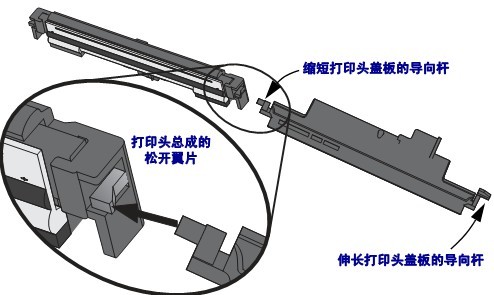
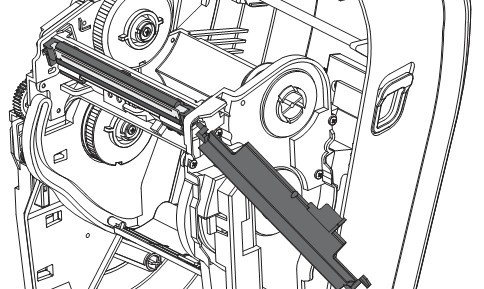
4.4 Cleaning and Replacement of the Print Roller The label printing roller (active roller) generally does not require cleaning, although paper scraps and backing debris may accumulate, but this will not affect printing operations. Dirt on the printing roller can damage the printhead, causing media slippage or sticking during printing. Adhesive, dirt, dust, oil, and other contaminants should be removed from the printing roller immediately. If printer performance and print quality are significantly reduced, and media handling is not smooth, the printing roller (and media path) should be cleaned. The printing roller is the printing surface and the drive wheel for the media. If sticking or paper jams still occur after cleaning, the printing roller must be replaced. Clean the print roller using a lint-free cleaning swab or a lint-free cloth dampened with a small amount of alcohol. ① Remove the print roller from the print roller area by removing the print cover plate. ② Loosen the bearing lock on the left or right side of the print roller and pull the flaps forward and upward. Note: The support arm structure of the print roller is complex. Move the support arm outside the printer until you can clean the grooves on the bearing housing. Then, slowly and gently pull the support arm towards the front of the printer to remove the print roller. Be careful when installing the bearing. ③ Remove the print roller from the bottom bracket of the printer. ④ Clean the print roller with an alcohol-dampened cleaning swab, cleaning from the center outwards. Repeat this process until all print roller surfaces are clean. If you find a lot of accumulated sticky material or severe label blockage, repeat the process with a new cleaning swab to remove residual dirt. The first cleaning may dilute adhesive and oil stains, but may not completely remove them. ⑤ Reinstall the print roller into the printer. The cleaning swab is not reusable and should be discarded after use. ⑥ Ensure that the bearings and drive gears are on the print roller shaft. ⑦ Align the print roller with the gear on the left side and place it downwards into the bottom bracket of the printer. ⑧ Gently turn the locking pin of the print roller bearing downwards towards the rear of the printer to loosen the flap and lock it into the notches on both sides of the bearing groove. Allow the printer to dry for about one minute before closing the media cover.
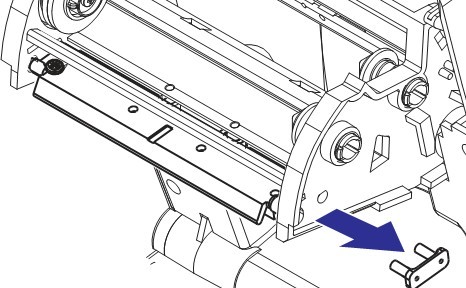
4.5 Replacing the Printhead Caution: Prepare a work area to prevent static discharge. Anti-static measures must be taken in the work area. Use properly grounded conductive shockproof pads to support the printer. The operator should also wear a conductive wrist strap. Caution: Turn off the printer power, unplug the power cord, and then replace the printhead. 4.5.1 Printhead Removal ① Turn on the printer. Remove the thermal transfer ribbon from the printer. ② Grasp the printhead spring and pull it to the left, then slide it off the bracket. ③ Use the spring to pop the printhead clip off the right side of the bracket.
④ Pull the printhead and bracket forward. ⑤ Use a #2 Phillips screwdriver to remove the screw securing the ground wire. ⑥ Disconnect the two bundles of printhead cables from the connector. 4.5.2 Printhead Reinstallation New printheads come with clips and grounding screws. ① Align the printhead and bracket, and connect the left and right connectors to the black and white wiring harness. ② Connect the ground wire and secure it with the screw. Tighten the screw using a #2 Phillips screwdriver. ③ Slide the left end of the printhead spring into the left end of the ribbon carriage, and then slide the right end into the other end of the carriage. The “V” angle should align with the notch at the top of the printhead bracket. ④ Insert the bracket pin into the left side of the carriage. ⑤ Align the right side of the bracket and insert the printhead clip through the ribbon carriage into the bracket. ⑥ Check that the printhead moves freely up and down while applying pressure and remains in the locked position when released. ⑦ Clean the printhead. Use a new cleaning pen to wipe away oil (fingerprints) and stains from the printhead. Clean the printhead from the center outwards. ⑧ Reload the media. Plug in the power cord, turn on the printer, and print a status report to ensure the printer is working properly.
5. Troubleshooting Zebra GK888t Barcode Printer This section provides printer troubleshooting information that may be needed to perform printer troubleshooting, including various diagnostic tests. 5.1 Status Indicator Light Description
Indicator light status and color
Printer status
For solutions, please refer to the numbers below.
Extinguish
closure
1
Continuing to be green
Open
2
It remains amber in color.
Stopped
3
Green flashing
Stopped
4
Red flashing
Stopped
5
Red hazard lights
Suspended
6
Amber shimmer
Suspended
7
Red and green flashing alternately
Needs repair
8
Red flashing, red and green flashing
Repair or restart required
9
It will flash red, amber, and green (do not reset or turn off the power).
Memory card defragmentation
10
5.2 Status Indicator Error Troubleshooting The status indicator error solution numbers below correspond to the “Status Indicator Description” table in 5.1. Each error number has one or more troubleshooting methods to resolve the listed errors. 1. Printer Not Powered On ● Is the printer power on? ● Check the power connections from the wall outlet to the power source and from the power source to the printer. ● Disconnect the printer power from the wall outlet for 30 seconds, then reconnect the printer power to the wall outlet. 2. Printer Power On, in Standby Mode No action is necessary. 3. Printer Power-On Self-Test (POST) Failed ● If the error occurs when the printer is powered on, contact MinYong Digital for assistance. If the printer is working properly, the printer status indicator light will be amber for 10 seconds before turning green (steady or flashing).
A memory error has occurred. ● If the error occurs after printing, turn the printer power off, then back on, and resume printing.
The print head needs to cool down . ● If this error persists, turn the printer power off, wait at least five minutes, then turn it back on. If the amber indicator light remains on, the printer needs repair. 4. Printer is receiving data . ● After receiving all data, the status indicator light will turn green, and the printer will automatically resume operation. 5. Media is used up. ● Reload the roll of media and press the “Feed” button to resume printing.
Ribbon is used up. ● The printer detects the end of the ribbon roll. Replace the ribbon.
Printhead is open . ● Close the top cover and press the “Feed” button to resume printing. 6. Printer is paused. ● Press the “Feed” button to restart printing. 7. Printhead temperature is too high. ● Printing will pause, waiting for the printhead to cool to an acceptable printing temperature. Once this temperature is reached, the printer will automatically resume operation. 8. Flashing memory is not programmed. ● Return the printer to the point of purchase. 9. Printhead or motor has a serious malfunction. ● Return the printer to the point of purchase. ● The printhead may be experiencing a “THERMAL SHUTDOWN” error. Turn off the printer, let it cool for a few minutes, and then turn it back on. If the error persists, send the printer to MinYong Digital. 10. The printer is performing memory defragmentation. Caution: Do not turn off the printer power during defragmentation, as this will damage the printer. ● Defragmentation is a routine operation of the printer, which helps to better manage memory card space usage. The printer will perform defragmentation on the memory card when factory defaults are restored and when the printer detects that defragmentation is necessary. While the printer is in this state, allow it to complete defragmentation. If warnings are frequently issued, check the label format. Frequent writing or erasing of the format from memory may cause the printer to defragment frequently. Using a format that avoids frequent rewriting of the memory will minimize the need for defragmentation. ● If the warning does not disappear, contact Technical Support. The printer needs repair.
5.3 Print Quality Issues 5.3.1 No content is printed on the label. ① In the case of printing without a ribbon, the media may not be thermal media. ② For thermal transfer printers, the media must not have winding problems, and an incompatible printer ribbon must not be used. ③ Is the media loaded correctly? 5.3.2 Incorrect printed image ① The print head is dirty; clean the print head. ② The print head temperature is too low. ③ Adjust print depth and/or print speed. ④ The media being used is incompatible with the printer. ⑤ The printhead is worn. The printhead is a consumable part and will wear down due to friction between the media and the printhead. Using incompatible media may shorten the life of the printhead or damage it. Replace the printhead. ⑥ The print roller needs cleaning or replacement. The print roller may lose traction for the following reasons: ● Foreign matter on the surface. ● The smooth surface of the rubber material has become polished and slippery. ● A normally smooth printing surface has folded knife-cut-like damage. 5.3.3 Many labels have many blank vertical lines (no printed content) ① The printhead is dirty. Clean the printhead. ② The printhead components are damaged. 5.3.4 The printing action does not start from the top of the label, or one to three labels have printing errors. ① The media is not properly cascaded. ② The printer needs calibration. ③ ZPL label format – the correct media sensor may not be enabled. Manual calibration allows you to select the media sensing method for the labels to be used. (^MN command) ④ ZPL label format – Check that the “Label Top” (^LT) command is correctly set for your application. ⑤ EPL label format – For label delivery, black line or notch sensing, or slit/cut sensing, the correct media sensor may not be activated. Manual calibration allows you to select the media sensing method for the labels you want to use. (o and Q commands) ⑥ EPL label format – Check that the “Set Label Length” (Q) command is correctly set for your application. 5.3.4 ZPL label format sent to printer, but printer cannot recognize it ① Is printing in pause mode? If so, press the “Paper Feed” button. ② Check that the data cable is correctly installed. ③ A communication failure has occurred. First, check that the correct communication port on the computer is selected. ④ Check that the correct “Format” and “Control Prefix” on the printer match what is used in the ZPL programming label format. The default format is an up arrow (^) character, and the control character is a tilde (~) character. 5.3.5 The EPL label format has been sent to the printer, but the printer cannot recognize it. ① Is printing in pause mode? If so, press the “Paper Feed” button. ② Check that the data cable is installed correctly. ③ A communication failure has occurred. First, check that the correct communication port has been selected on the computer. ④ If the printer has the label peel function enabled, the printer will wait for the user to remove the label. The backing paper/mold must be correctly passed through the label peeler for proper operation in label peel mode.
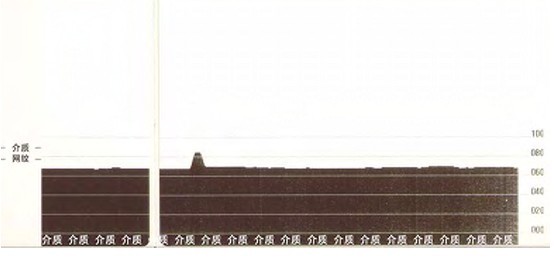
5.4 Manual Calibration If you are using pre-printed media or if the printer has not performed automatic calibration correctly, manual calibration is recommended. ① Ensure media is loaded. ② Turn on the printer. ③ Press and hold the “Feed” button until the green indicator light flashes once, then twice, and continues flashing until a set of seven flashes is achieved. Release the “Feed” button. ④ The printer will set the media sensor for the label backing to be used. After this adjustment, the roll of media will be automatically fed until the label is positioned under the printhead, and a graph of the media sensor settings will be printed. After the above operations are completed, the printer will save the new settings in its memory and the printer will be ready for normal operation. ⑤ Press the “Feed” button to feed a full sheet of blank label. If it does not feed, try restoring the printer to its default settings and performing a printer recalibration. Note: Performing manual calibration disables the automatic calibration function. To return to automatic calibration mode, restore the printer to its default settings.
5.5 Feed Button Mode
Power off mode
With the printer powered off, press and hold the “Paper Feed” button while the printer is powered on.
blinking sequence
operate
Amber-red shimmer
Firmware Download Mode – The printer starts flashing red rapidly, indicating that it has entered “Firmware Download Mode”. Releasing the “Paper Feed” button at this time initializes the printer and begins the download. When the printer status indicator light starts flashing red and green slowly, it indicates that the printer is ready to begin downloading the firmware.
amber
Normal operating mode – The printer enters the normal initialization process. Releasing the “Paper Feed” button at this time will allow the printer to start normally without downloading firmware and to work in communication diagnostic mode.
green
Communication Diagnostic Mode – After the printer status indicator turns green, immediately release the “Feed” button. The printer will print “Now in DUMP” at the top of the label and then advance to the next label. After printing the first label, the printer will automatically enter diagnostic mode, where it will print a text representation of any subsequently received data. To exit diagnostic mode and resume printing, turn the printer off and then on again. Another way to exit diagnostic mode is to press the “Feed” button multiple times, which will clear the printer’s command buffer and print “Out of DUMP” on the label.
Power On Mode
With the printer powered on and the top cover closed, press and hold the “Paper Feed” button for a few seconds; the green indicator light will flash several times. The instructions on the right (Operation) show the printer’s status when the button is released after the indicator light has flashed a certain number of times and before the next flashing sequence begins.
blinking sequence
operate
*
Configuration Status – Prints detailed printer configuration status reports. Labels can be used to verify print quality, help printers calculate communication configurations, perform maintenance and troubleshooting, and assist users with customer service communication.
* **
Standard Media Calibration – The printer detects and sets the media type and length, adjusting the media sensor to provide optimal performance for loaded media (equivalent to ZPL command ~JC). During calibration, the printer will feed one to four labels.
* ** ***
Serial Port Configuration – Only applicable to printers with a serial interface port. To reset the communication parameters of the serial port (excluding database control), press and release the “Paper Feed” button while the indicator light is flashing rapidly in amber and green. To automatically synchronize the baud rate: send the ^XA^XZ command sequence to the printer while the indicator light is flashing rapidly in amber and green. The indicator light will switch to a continuous green display when the printer and host are synchronized. Note: Labels will not be printed during automatic baud rate synchronization.
* ** *** ****
Factory default settings – Resets the printer to factory default settings (equivalent to ZPL command ~JUN). Some configuration settings are not returned to the initial installation settings. Other settings that are programmatically set, viewed, and controlled will also be reset. During memory defragmentation, the printer will perform a standard media calibration process. After the network printer enters factory default mode, the status indicator light will turn amber within three seconds. During this process, the user can perform two actions: without performing any action, the printer will automatically reset to factory defaults as described above, or the user can press and hold the “Paper Feed” button to enter factory default reset mode for printers equipped with the network printer option (equivalent to ZPL command ^JUF). Releasing the button after the first flash will reset the network’s factory option (equivalent to ZPL command ^JUN). Releasing the button after the second flash sequence (blinks twice) will only reset the printer defaults. Releasing the button after the third flash will reset both the printer and network settings (ZPL commands ^JUN and ^JUF).
* ** *** **** *****
Print width adjustment – Starting from the minimum print width and moving up to the printer’s maximum print width, print one frame every 4 mm. When the printer reaches the desired maximum print width, press the “Feed” button. Note that printer drivers and applications may override this setting.
* ** *** **** ***** ******
Print Depth (Density) Adjustment – Starting from the minimum color depth (print density/heat) and ending at the printer’s maximum depth, use the ZPL depth setting range to print continuous barcode simulation patterns in four-digit increments. If the pattern is clear and effective, press the “Feed” button once. Do not continue increasing the color depth setting, otherwise the width of the barcode lines may be distorted, leading to decreased readability. Note that printer drivers and applications may override this setting.
* ** *** **** ***** ****** *******
Manual Media Calibration – The printer runs a comprehensive test to detect and set the media type and length, adjusting the media sensor for optimal performance with the installed media (equivalent to the ZPL~JG command). Manual calibration is recommended if using pre-printed media; otherwise, errors may appear on the label backing if the printer does not calibrate correctly automatically. A graphical representation of the media sensor readings will be printed.
If the “Paper Feed” button remains pressed after a 7-flash sequence, the printer will exit configuration mode when the user releases the “Paper Feed” button.
6. Zebra GK888t Barcode Printer ZPL Configuration 6.1 ZPL Printer Configuration Format Create a printer configuration programming file and send it to one or more printers to manage multiple printers. You can also use ZebraNet Bridge to copy printer settings. The basic structure of the ZPL programming configuration file is shown below: ^XA – Start Format Commands The order of the format commands is very important: Ⅰ. General Printing and Command Settings Ⅱ. Media Handling and Operations Ⅲ. Media Print Size ^JUS Save Command ^XZ – End Format Commands Create the programming file. You can use the Zebra Setup Utility (ZSU) to send the programming file to the printer. You can also use Windows Notepad (a text editor) to create the programming file.
6.2 ZPL Configuration Status and Command Reference
Order
List Name
illustrate
~SD
DARKNESS
Default value: 10.0
–
DARKNESS SWITCH
not applicable
^PR
PRINT SPEED
Default value: 6 IPS/152.4 mm/s (maximum)
~THAT
TEAR OFF
Default value: +000
^MN
MEDIA TYPE
Default: GAP/NOTCH
SENSOR TYPE
Default: WEB (mesh)
SENSOR SELECT
Default value: AUTO (^MNA – Automatic detection)
^MT
PRINT METHOD
THERMAL-TRANS or DIRECT-THERMAL
^PW
PRINT WIDTH
Default value: 832 points
^LL
LABEL LENGTH
Default value: 1225 points (a value calibrated in a timely manner by automatically performing mesh-gap detection for the label media)
^ML
MAXIMUM LENGTH
Default value: 39.0 IN 989 MM
–
USB COMM.
Connection status: Connected/Not connected
–
PARALLEL COMM.
Available connection: BIDIRECTIONAL (bidirectional)
^SCa
BAUD
Default value: 9600
^SC,b
DATA BITS
Default value: 8 bits
^SC,,C
PARITY
Default value: NONE
^SC,,,,e
HOST HANDSHAKE
Default value: DTR or XON/XOFF
^MFa
MEDIA POWER UP
Default: NO MOTION
^MF,b
HEAD CLOSE
Default: FEED (Paper Feed)
~JS
BACKFEED
Default value: DEFAULT
^LT
LABEL TOP
Default value: +000
^LS
LEFT POSITION
Default value: +0000
7. Zebra GK888t Barcode Printer Interface Connections 7.1 Universal Serial Bus (USB) Interface The diagram below shows the cable routing required to use the printer’s USB interface. The printer must use a cable or cable package marked “Certified USB” to ensure compliance with the USB 2.0 specification.
7.2 Parallel Interface The printer’s parallel interface uses an IEEE 1284-A to 1284-B parallel interface cable. The host connector has a DB-25 pin connector. The printer connector is a Centronics-style connector.
7.3 Ethernet Interface This interface requires a CAT-5 or higher UTP RJ45 Ethernet cable. The table below shows the cable lead assignments.
DTR (Data Terminal Ready) output from the printer — used to control when the host can send data.
5
rack grounding
6
DSR (Data Set Ready) input to printer
7
RTS (Request to Send) output from the printer – always in “Active” condition when the printer is powered on.
8
CTS (Clear to Send) – Not for printer use
9
+5V 0.75A fuse
The maximum total current through the serial and/or parallel interface ports must not exceed a total of 0.75 amps. If XON/XOFF handshake is selected, the data flow is controlled by ASCII control codes DC1 (XON) and DC3 (XOFF). The DTR control preamble character will be disabled. Interconnecting to DCE devices – When connecting a printer to a data communication device (DCE) such as a modem via an RS-232 interface, a standard RS-232 (straight-through) interface must be used. The diagram below shows the required connections for this cable.
Connecting to the KDU (Keyboard Display Unit) – The KDU is designed for DCE printer connections and requires a custom Zebra serial port male/female adapter. The KDU adapter is now included with the KDU; the Zebra kit number for the KDU adapter is 105934-088.
1. Introduction to various parts of Zebra_GT800 barcode printer 1.1 Status indicator light/feed button/release latch/interface connector/folding media entry slot/DC power switch and socket
1.2 Ribbon roll hook supply shaft/pick-up shaft/web sensor/media guide gear adjuster/paper roll hook and media guide/black line sensor/elevation angle sensor/platen roller/print head/ribbon end sensor
1.3 Power switch/color depth control switch
CAUTION: Turn off the printer before connecting or disconnecting communications and power cords The Operator Color Depth Control switch allows the operator to modify color depth settings without changing the program or driver settings sent to the printer. This allows the user to adjust settings for small changes in the media and printer. The control switch has three settings: low (1), medium (2), and high (3). The Low (1) setting does not change the actual Color Depth setting set through programming or driver settings. The Medium (2) setting increases the depth level by 3 stops; for example, if the printer is set to the default depth setting of 20, the actual color depth setting applied when printing will be 23. The “High (3)” setting adds 6 color depth levels to the color depth setting level. Important: Setting the color depth to high or low will reduce the readability of the barcode.
2. Zebra GT800 barcode printer installation instructions 2.1 Load roll media When loading media, rolls of media must be placed in the media supply bay and the correct media must be used for the type of printing required. ① Turn on the printer. Note that you need to pull the release button lever towards the front of the printer; ② Open the roll media hook, use your other hand to pull the media guide open, place the roll media on the paper roll hook, and release the guide plate. Adjust the position of the roll media so that the print side faces up when it passes over the printing roller; ③ Pull out the media so that the media protrudes from the front of the printer. Check whether the roll media can rotate freely. Do not put the roll media into the bottom of the media compartment. Check whether the printing side of the media is facing up; ④ Push the media under the two media guides; ⑤ If you do not need to install the thermal transfer ribbon, close the top cover;
2.2 Load the thermal transfer ribbon The GT800 printer features a flexible ribbon system. It supports 300 meters and 74 meters of ribbon, and it also supports two ribbon roll adapters that can use 25.4 mm inner diameter ribbon rolls.
Requirements for thermal transfer ribbons: ● Media and ribbon types should match for best printing results ● To protect the print head from wear and tear, use a ribbon wider than the media. ● For thermal printing, do not install ribbon in the printer ● Use an empty ribbon roll that matches the inner diameter of the thermal transfer ribbon roll. Ribbon wrinkles or other printing failures may occur. ● Do not use ribbon rolls with damaged grooves, worn corners, broken, or shredded ribbon rolls. The grooves in the ribbon core should be intact so that the ribbon core can be fixed on the spindle. Otherwise, the ribbon core will slip, causing ribbon curling, ribbon end sensing errors, or other intermittent errors. 2.2.1 Load the standard core thermal transfer ribbon Check whether there are gaps on both sides of the ribbon and empty ribbon core. If there are no gaps, please install them according to the non-standard core installation method. ① Open the printer cover and place the empty ribbon core on the printer pickup shaft. Push the right side of the empty ribbon core into the spring-pressed rotating shaft (right side), align the ribbon core with the center of the left rotating shaft hub, and rotate the ribbon core until the notch is aligned and locked. ② Place the new ribbon roll on the bottom ribbon supply shaft of the printer, push it into the right shaft, and lock the left side. The operation method is the same as fixing the pickup ribbon core. ③ Connect the ribbon to the pickup ribbon core, use the tape on the new pickup shaft, or use a piece of thin tape, align the ribbon, and let it wrap straight around the ribbon core. ④ Rotate the ribbon pick-up hub backward at the top to tighten the slack of the ribbon. The rotating hub helps to accurately align the ribbon pick-up position with the ribbon supply axis, and the ribbon leader should be completely covered by the ribbon. ⑤ Check that the media has been loaded and is ready to print, then close the printer cover. ⑥ When the printer is powered on, press the “Feed” button, let the printer feed a section of media of at least 20cm, tighten the slack part and ribbon wrinkles, make the ribbon straight, and align the ribbon on the rotating shaft. ⑦ Change the print mode setting from thermal to thermal transfer to set the printer temperature profile for thermal transfer media. This setting can be done through the printer driver, application software, or printer programming commands. 2.2.2 Load non-standard core thermal transfer ribbon Loading non-standard core ribbon into the printer requires the use of a Zebra ribbon core adapter. When using ribbons with non-standard cores for printers, at least the following requirements should be met: ● The inner diameter of the ribbon core should be 25.4mm. Material: Hard materials such as fiberboard and plastic core may not work properly. ● Ribbon width range: 110 to 33 mm. ● The maximum outer diameter of the ribbon is 66mm.
Adapters center the ribbon and ribbon core onto the media and printer. The adapter has a “ribbon core lock” spring that secures the soft fiberboard on the inside of the ribbon core and serves as a ruler to measure from the centerline of the printer when loaded into the printer. ① Load an empty ribbon core into the ribbon core adapter. The empty ribbon core should be the same as or slightly larger than the width of the ribbon roll. Place the center of the ribbon core roughly on top of the center line of the adapter. You can use an empty standard ribbon core without using an adapter and an empty non-standard ribbon core. The printer comes with a 300 meter empty ribbon core. ② Load the non-standard ribbon roll into the ribbon core adapter, align the adapter flange to the left, and check whether the ribbon unfolds the back of the ribbon roll as shown. Place the center of the ribbon core roughly on top of the centerline of the adapter.
The 110mm maximum width media roll does not need to be centered. For media smaller than the maximum width and up to the minimum width of 33mm, the graduated scale on the adapter core should be used to align the ribbon roll with the media and printer. ③ Place the adapter with the empty ribbon core on the pickup spindle, and place the adapter with the ribbon roll on the bottom supply spindle. The right side of the ribbon core adapter mounts to the tapered end of the spring-loaded right side spindle. Push the adapter further onto the right side of the spindle and install the adapter onto the left hand wheel hub. Rotate the adapter and hub until the grooves on the adapter flange align and lock onto the spokes of the left spindle hub.
④ During the installation of the ribbon and empty ribbon core in the previous step, they may deviate from the center position. Check whether the ribbon roll and empty ribbon core are aligned with the center of the media (labels, paper, etc.). Note: You can use the centerline ruler on the ribbon core adapter to adjust the position. If you forgot to check that the ribbon is wide enough for the media, you can still check now. To protect the print head, the ribbon must be wider than the media (including the label liner or backing). ⑤ Connect the ribbon to the pickup ribbon core. Use a thin piece of tape to secure the ribbon to the pickup core, aligning the ribbon so it wraps straight around the core. ⑥ Rotate the ribbon pickup hub backwards from the top to tighten the slack part of the ribbon. Rotating the hub can help accurately align the ribbon pickup position with the ribbon supply axis. The ribbon should be wound around the ribbon pick-up core at least one and a half times. ⑦ Check that the media is loaded and ready to print, then close the printer cover. ⑧ When the printer is powered on, press the “Feed” button, let the printer feed a section of media of at least 20cm, tighten the slack part and the ribbon wrinkles, make the ribbon straight, and align the ribbon on the rotating shaft. ⑨ Change the print mode setting from thermal to thermal transfer to set the printer temperature profile for thermal transfer media. This setting can be done through the printer driver, application software, or printer programming commands.
2.3 Print test (printer configuration) label Before connecting the printer to the computer, make sure the printer is in normal working order. You can print a configuration status label to confirm. ① Make sure the media is installed correctly and the top cover of the printer is closed. If the printer is not already powered on, power it on. If the printer status indicator light flashes green during the initialization process (pause state), you should press the “Feed” button to set the printer in “Ready” mode. If the printer status indicator light does not turn solid green, please refer to the subsequent troubleshooting. ② Press the “Feed” button two to three times to let the printer perform calibration according to the loaded media. During this process, the printer may feed multiple labels. ③ When the status indicator light remains green, press and hold the “Feed” button until the status indicator light flashes once. ④ Release the “Feed” button. A configuration label will print out.
2.4 Pre-install Windows printer driver Zebra has changed the installation method to use the printer through the Windows operating system based on the PC system. It is recommended to pre-install at least the ZebraDesigner Windows driver to take advantage of its simplicity and ease of use, as well as the convenience of the Windows operating system after Windows XP SP2 version. Zebra provides Zebra Setup Utilities (ZSU), which is a set of Zebra printer drivers, utilities, and communication and installation tools that can be used for most Windows PC operating systems. Zebra Setup Utilities and Zebra windows printer drivers can be obtained from the user CD, or the latest version can be obtained from the Minyong website (www.chongshang.com.cn). ZebraDesugber driver and Zebra Setup Utilities (including driver): Support Windows7, Windows Vista, Windows XP, Windows 2000, Windows Server2008 and Windows Server2003 operating systems. The driver supports 32-bit and 64-bit Windows operating systems and has been certified by Microsoft. The ZebraDesugber driver and Zebra Setup Utilities support the following printer communication interfaces: USB, parallel, serial, wired and wireless Ethernet, and Bluetooth (using the Bluetooth virtual printer port). Zebra Setup Utilities should be installed first before powering up the printer connected to the PC. Zebra Setup Utilities will prompt you to power up the printer. Continue with the following steps to complete the printer installation. 2.4.1 Plug and Play (PnP) printer detection and Windows operating system Newer Windows operating systems can automatically detect the printer when it is connected via the USB interface. Depending on the hardware configuration and Windows version, printers can be detected via plug-and-play when connected to USB, parallel, and serial ports. The printer driver currently does not support serial port plug-and-play installation. The printer’s serial port PC interface configuration must support and have two-way communication capabilities to achieve plug-and-play. The first time you connect a printer to your PC, the operating system will automatically launch the Add New Hardware wizard, and if the Zebra Setup Utility comes with a preinstalled driver suite, the printer driver will automatically be installed. Go to the Windows printer directory, right-click the mouse, select “Properties”, click the “Print Test Page” button to verify whether the installation is successful. If you reconnect the printer to the USB port or power on the printer after the PC completes the reboot of the operating system, the Windows operating system will detect and reconnect the previously installed printer. Ignore the warning that a new device has been detected and close the taskbar prompt. After waiting a few seconds for the operating system and driver software to match, the warning message will exit and the printer is now ready to print. 2.4.2 Universal Serial Bus (USB) device communication When using the USB interface, the printer is the terminal device (not the host or hub). NOTE: A scanner, scale, or other data input (terminal) device must use a serial port (not a USB port) to send data to the printer. 2.4.3 Serial Ports and Windows Operating Systems In addition to the data flow control settings, the default settings for the serial port communication of the Windows operating system match the default settings of the printer. The default data flow control setting of Windows is NONE. The GT800 printer needs to set the data flow control setting to Hardware. Note: GT800 printers currently do not support plug-and-play device detection for Windows serial ports. 2.4.4 Ethernet The GT800 printer options feature multiple methods and applications to help connect the printer to a network (WAN or LAN) and configure wired and wireless (Wi-Fi) printers. The Zebra Setup Utility configuration wizard supports printers using IP addresses to connect to printers on shared networks through Windows-based systems. The printer has an internal web page that makes it easy to configure the printer and network. This web page can be accessed using a web browser through the printer’s IP address. The free version of ZebraNet Bridge software allows users to centrally deploy, manage and monitor Zebra printers. Zebra’s printer auto-discovery feature can discover up to 3 printers from a preset PC screen anywhere on the global network. ZebraNet Bridge Enterprise can be purchased to manage large numbers of Zebra printers.
2.5 Connect the printer to the computer The Zebra GT800 printer supports a variety of interface options and configurations. These include: Universal Serial Bus (USB) interface, RS232 serial interface, parallel interface (IEEE1284) and 10/100 Ethernet. CAUTION: When connecting the interface cable, place the power switch in the off position. Before connecting or disconnecting communications cables, the power cord must be plugged into the power supply unit and the electrical outlet on the back of the printer. Interface cable requirements: Data cables must be of fully shielded construction and equipped with metal or metallized connector housings. To prevent radiated and received electrical noise, shielded cables and connectors must be used. To minimize the level of electrical noise pickup in cables, do the following: ● Data cables should be as short as possible (1.83m long cable is recommended) ● Do not bundle data cables and power cords tightly together ● Do not tie data cables to power conduits
2.6 After connecting the printer You can now establish basic communication with the printer and test printer communication, and then install other printer-related applications, drivers, or utilities. Verifying the operation of the printing system is a relatively simple task. For Windows operating systems, the Zebra Setup Utility or the Windows “Printers and Faxes” control panel can operate and print a test label. For non-Windows operating systems, a (~WC) command can be used to copy a basic ASCII text file to print a configuration status label. 2.6.1 Test printing using Zebra Setup Utility ① Open Zebra Setup Utility ② Click the icon of the newly installed printer, select the printer and enable the printer configuration button under the printer in the window. ③ Click the “Open Printer Tools” button. ④ In the “Print” tab window, click the “Print configuration label” line and click the “Send” button. The printer will print the configuration status label. 2.6.2 Use the Windows “Printers and Faxes” menu to test the printing situation
① Click the Windows “Start” menu button and go to “Printers and Faxes”, or go to the “Control Panel” “Printers and Faxes” menu to open the menu. ② Select the newly installed printer icon, select the printer, and right-click the mouse to open the printer’s “Properties” menu. ③ From the printer’s “General” tab window, click the “Print Test Page” button, and the printer will print the Windows test print page. 2.6.3 Perform a test print to an Ethernet printer connected to the network (LAN or WAN) using the MS-DOS command prompt or from the Windows XP Start menu ① Create a text file using three ASCII characters: ~WC ② Save the file as: TEST.ZPL (any file name and extension) ③ Read the IP address on the network status printout of the printer configuration status label. While connected to the same LAN or WAN as the printer, type the following into the address bar of the web browser window and enter: ftp 123.45.67.01 (assuming the IP address is 123.45.67.01) ④ Type the file name, then enter “put” and press Enter. For this “test print” file it should be: put TEST.ZPL 2.6.4 For non-Windows operating systems, use copying the ZPL command file to perform test printing ① Create a text file using three ASCII characters: ~WC ② Save the file as: TEST.ZPL (any file name and extension) ③ Copy the file to the printer. For DOS environment, send the file to the printer connected to the system parallel port. The command is very simple: COPY TEST.ZPL LPT1
3. Zebra GT800 barcode printer printing operation 3.1 The printer is not operated or stored for a long time A printhead that has been stored for a long time may stick to the platen roller. To avoid this, store the printer with a piece of media (label or paper) between the printhead and the platen roller. Do not ship the printer with a media roll installed, otherwise the printer or media may be damaged.
3.2 Printing mode The GT800 printer works in different modes and various media configurations: ● Thermal printing (this method uses heat-sensitive media for printing) ● Thermal transfer printing (this method uses a ribbon to print on the media using the principle of thermal transfer) ● Standard tear-off mode allows users to tear off labels (or batch-printed label strips) after printing each label ● Label peeling mode: If a label peeler is installed, the label can be peeled off from the backing material during the printing process. After removing this label, the next label can be printed immediately. ● Stand-alone mode: The printer can print without being connected to a computer serial port when using the auto-run label function (according to programming) or using a data input device connected to the printer’s parallel port. In this mode, you can use data entry devices such as scanners, scales, Zebra KDU Plus, or Zebra KDU (Keyboard Display Unit). ● Network shared printing: Printers equipped with the Ethernet interface option have a built-in print server that can manage and monitor the status of Zebra printers on the network through the ZebraLink printer configuration web page and ZebraNet Bridge software.
3.3 Types of printing media Important: For uninterrupted high-quality printing, Minyong strongly recommends the use of Minyong recommended consumables. A variety of specially designed papers, polyethylene, polyester and vinyl products can improve the printing performance of the printer and prevent premature wear of the print head. The GT800 printer can use a variety of media types: ● Standard Media – Most label non-continuous media use an adhesive material that allows multiple individual labels or a length of continuous labels to be adhered to a backing. ● Continuous roll media – Most continuous roll media are thermal (similar to fax paper) and are suitable for receipt or ticket printing. ● Unbacked media – Unbacked labels have an adhesive material, but are wrapped around a core of media without a backing. The media is usually pre-punched and may also have black mark markings on the underlying surface of the media to indicate where the labels are separated. The top layer of labels on unbacked media has a special coating that prevents labels from sticking to each other. The printer must be equipped with a special “linerless” option to use linerless media and ensure that the media does not stick to the printer. ● Label Material – Labels are typically made from thick paper (up to 0.19mm thick), the label material has no adhesive or backing, and usually comes with pre-punched holes between each label. ① Non-continuous roll media Roll media can be wound on core diameters from 12.7 to 38.1 mm. Labels have an adhesive backing that bonds the labels to the lining, and the labels are separated by spacers, notches, cut-out holes, or black marks. Labels are separated by perforations. Individual labels are separated by one or more of the following methods: ◆The textured media is separated by spacers, cut holes or notches.
◆Black mark media uses pre-printed black marks on the back of the media to show label separation locations.
◆Pre-punched media has perforations that allow easy separation between labels or label materials. The media may also have black marks or other separation between labels.
② Intermittent folded media, folded media folded in a staggered manner, folded media can have the same separation method as the intermittent media roll. The separation location may be at or near the fold. ③ Continuous roll media, roll media can be wound on a paper core with a diameter of 12.7 to 38.1 mm. Continuous rolls of media have no gaps, cutouts, notches, or black marks to indicate where labels are separated. Images can be printed anywhere on the label, and individual labels can be cut with a cutter. If using continuous media, a transmissive (gap) sensor should be used so that the printer can detect the media being ejected.
3.4 Adjust printing width The print width must be set when: ● Using the printer for the first time ● Media width changed You can set the print width in the following ways: ◆ Windows printer driver or application software such as ZebraDesigner. ◆ With the printer power on and the top cover closed, press and hold the “Feed” button for a few seconds. The green status indicator light will flash 5 times and then release the button. The printer will adjust the width. Starting from the minimum printing width to the maximum printing width of the printer, a frame will be printed continuously every 4mm. When the printer reaches the required maximum printing width, press the “Feed” button. Note: Printer drivers and applications may override this setting. ◆ Use ZPL programming to control printer operation, please refer to the “Print Width Command” (~PW) command. ◆ To control printer operation through “EPL page mode” programming, please refer to the “Set Label Width” (q) command.
3.5 Adjust print quality Print quality is affected by printhead temperature or density settings, print speed, and the type of media used, experiment with these settings to find the best combination for your application. Print quality can be set using the Zebra Setup Utility’s “Configure Print Quality” program. You can control the relative color depth (or density) setting in the following ways: ◆ With the printer power on and the top cover closed, press and hold the “Feed” button for a few seconds. The green status indicator light will flash 6 times and then release the button. The printer will adjust the depth, starting from the minimum color depth (printing density/heat) and ending at the printer’s maximum color depth. Use the ZPL depth setting range value to print a continuous bar code simulation pattern in increments of 4. If the pattern is clear and valid, press the “Feed” button. Do not continue to increase the color depth setting or the width of the barcode lines may be distorted, resulting in reduced readability. NOTE: Printer drivers and applications may override this setting. It will override any color depth/density settings programmed via ZPL or EPL. ◆ (~SD) ZPL command for “set color depth”. ◆ “Color Depth” (D) ELP command. If you find you need to adjust the print speed, you can use: ◆ Windows printer driver or application software such as ZebraDesigner. ◆ “Print Speed” (~PR) command. ◆ “Speed Select” (S) command.
3.6 Media sensing The printer has automatic media sensing, and the printer is designed to continuously check and adjust media length sensing to accommodate subtle changes. As printing begins or media is fed, the printer continuously checks and adjusts media sensing to accommodate subtle changes in media parameters from label to label and from roll to roll within the same roll. When starting a print job or feeding media, the printer automatically initiates media length calibration if the expected media length or spacing between labels falls outside the acceptable variation range. The automatic media sensing feature in the GT800 printer is also suitable for printer operation using EPL and ZPL label formats and programming. If the printer does not detect a label or black line (or notch with black line sensing) after feeding the media at the default maximum label length of 1 meter, the printer will switch to continuous media mode and will retain these settings if not changed using software or programmatically or manually calibrated for different media. You can also choose to set the printer to perform a brief media calibration after the printer is powered on, or when printing is turned off while the power is on. During the calibration process, the printer will feed multiple labels. You can verify the printer’s media settings by printing the Printer Configuration label. You can use the “ZPL Maximum Label Length Command” (~ML) to reduce the maximum distance to be checked by the media type automatic detection and sensing process. It is recommended to set this distance to no more than twice the longest label to be printed. If the maximum size label to be printed is 4*6 inches, you can reduce the detection distance of the maximum label length from the default distance of 39 inches to 12 inches. If the printer is unable to automatically detect media type and calibrate automatically, perform a full calibration, which includes a printed pattern of sensor operation for the user media. This method disables the printer’s auto-media sensing feature until the printer’s default parameters are reset to factory defaults using the four-flash feed button pattern. The media automatic calibration function can be modified, turned on or off according to user needs. Print jobs sometimes require the printer to use an entire roll of media. You can use the “ZPL media feed command” (~MF) to independently control the two media automatic feeding situations (power on when loading media, or close the printer cover when power on). The feed operations discussed in the ZPL Programmer’s Guide for the ~MF command apply primarily to media autosensing and calibration. Automatic media calibration operations for controlling media (label-to-label) calibration can be implemented using the ~XS command. These settings should not be changed if multiple media types of different lengths, materials, and detection methods (web/gap, black line, notch, or continuous) are used. The media calibration and detection process can also be refined to match the media type loaded into the printer, which can be set using the “ZPL Media Tracking” command (~MN). Printers sometimes detect preprinted media as spaces between labels, or backings with printed content as black marks, and if the ~MN parameter is set for continuous media, no automatic calibration is performed during printing. The ~MN command also includes an autocalibration parameter (~MNA) that can be used to return the printer to its default settings for automatic detection of all media types.
3.7 Fonts and Printers The GT800 printer meets your language and font requirements with a variety of internal fonts, onboard font scaling, international font sets and code page support, Unicode support, and font download options. The font function of GT800 printer is related to the programming language. The EPL programming language provides support for basic bitmap fonts and international code page fonts. The ZPL programming language provides advanced font mapping and scaling technology, supporting outline fonts (TrueType or OpenType) and Unicode font mapping, as well as basic bitmap fonts and character code pages. The GT800 printer features a variety of tools and application software that support downloading fonts to the printer for both printer programming languages. The GT800 printer has resident prefixes for supporting Simplified or Traditional Chinese. 3.7.1 Printer localization through code pages The GT800 printer supports two major programming languages, ZPL and EPL. Each programming language has a set of font sets to support regions, countries and character sets. The printer supports localization using commonly used international character mapping code pages, as well as configuration status printout. ●For zpl code page support including Unicode, see the ^CI command in the ZPL Programmer’s Guide. ●For the ZPL configuration status printout language, please refer to the ^KL command in the “ZPL Programmer’s Guide”. ●For EPL code page support, see I Commands in the EPL Programmer’s Guide. 3.7.2 Identify fonts in the printer Fonts and memory can be shared through the programming language in the printer. Fonts can be loaded into multiple memory areas in the GT800 printer, and ZPL programming technology recognizes both EPL and ZPL fonts. EPL programming technology can only recognize EPL fonts. ZPL font: ● Fonts suitable for ZPL printer operation can be managed and downloaded using Zebra Setup Utility or ZebraNet Bridge. ● To display all fonts loaded into your printer, send the ZPL ~WD command to the printer. The .FNT file extension in the ZPL language is used to identify bitmap fonts in different printer memory areas. The .TTF, .TTE, or .OTF file extension in the ZPL language is used to identify scalable fonts. EPL does not support these fonts. EPL font: ● To download fonts for EPL printing, use the Zebra Setup Utility or ZebraNet Bridge to send the file to the printer. ● To display soft fonts (ext.) available for EPL, the EPL command EI should be sent to the printer. All EPL fonts displayed are bitmap fonts and do not include the .FNT file extension or horizontal and vertical indicators displayed using the ZPL command ^WD in the above ZPL fonts. ● To delete non-Asian EPL fonts through EPL programming, use the EK command. ● To remove EPL Asian fonts from the printer, use the ZPL ^ID command.
3.8 Independent printing The printer can be configured to work independently without being connected to a computer. The GT800 printer can automatically run a single label printing format. One or more downloaded tag formats can be accessed using a terminal device, embedded device, or Zebra KDU (keyboard display unit) to use the tag formats. These methods allow developers to integrate data input devices such as scanners or scales into printers through the serial port. Label formats developed can be stored in the printer to support labels with the following characteristics: ● No data input is required, just press the “Feed” button to print. ● No data entry required, prints when labels are removed from the printer’s optional label peeler. ● One or more data variables can be entered through a terminal or embedded device. The label will be printed after the last variable data field is entered. ● One or more label formats invoked by scanning a barcode that contains programming information for the running label format. ● A label format designed as a step in the process, where each label includes a barcode that contains programming information to run the next label in the process. Both printer programming languages support special label formats that run automatically after a power cycle or reset. ZPL looks for a file named AUTOEXEC.ZPL, and EPL looks for a label format named AUTOFR. If both files are loaded into the printer, only AUTOEXEC.ZPL is run. If EPL AUTOFR is not disabled, it will always run. Both files must be deleted from the printer and then a reset or power cycle performed to completely delete the files.
3.9 Print counter The GT800 printer is able to report maintenance alerts for the printhead, the printer can provide a cleaning function, and can provide advance warning when a calculated printhead life alarm arrives. If an RTC (Real Time Clock) is installed in the printer, date information can also be included in the printhead life and history reports. By default, print count alerts are disabled. Multiple print counter messages and reports can be customized. To enable print counter alerts, send the following command to the printer: ● EPL command oLY ● ZPL command^JH,,,,,E
4. Zebra GT800 barcode printer maintenance 4.1 Clean the print head Caution: The print head will become hot during the printing process. To prevent damage to the print head and personal injury, please do not touch the print head. Only use a cleaning pen or alcohol cotton for maintenance. ① Rub the cleaning pen on the black area of the print head and clean from the middle to the outside. This can clean the sticky substance transferred from the edge of the media to the outside of the print head along the media path. ② Wait for one minute before closing the printer cover.
4.2 Media path considerations Use a cleaning swab to remove accumulated debris, dust, and dirt from hooks, guides, and media path surfaces. ① The alcohol in the cleaning swab soaks these particles to make them lose their stickiness. ② Wipe the protruding piece to remove accumulated debris. ③ Wipe the inner edges of the two media guides and the media holder to remove accumulated dirt. ④ Clean the back of the ribbon cover (movable baffle) and turn the cover down to a position where the top cover of the media can contact this surface. Adhesive on the edges of the label media may slowly stain and accumulate on the inside surface. ⑤ Wait for one minute before closing the printer cover and discard the used cleaning swab.
4.3 Sensor cleaning Dust can accumulate on the media sensor. ① Use a brush to gently brush off the dust, or use a compressed air can to blow off the dust. Do not use an air compressor – oil and sewage in the air pump will stain the printer and print head. Use dry cotton swabs to wipe away dust as needed. If there is still glue or other dirt, you can use alcohol to moisten the cleaning swab to remove it. ② Use a dry cleaning swab to remove any remaining dirt after the first cleaning. ③ Repeat steps 1 and 2 as needed until all residue and traces of dirt are removed from the sensor.
4.4 Cleaning and replacing the printing roller The label printing roller (drive roller) generally does not require cleaning, and although paper dust and backing debris may accumulate, it will not affect the printing operation. Dirt on the print roller will damage the print head and cause the media to slip or stick during printing. Glue, dirt, dust, oil and other dirt should be removed from the print roller immediately. If printer performance, print quality, and media handling are significantly reduced, the print roller (and media path) should be cleaned. The platen roller is the printing surface and the driving wheel for the media. If sticking or paper jams still occur after cleaning, the platen roller must be replaced. You can use a fiber-free cleaning swab or a lint-free cloth moistened with a little alcohol to clean the print roller. ① Print cover and remove the media from the print roller area. ② Pull the left or right print roller bearing lock release tab toward the front of the printer and rotate it upward. Note: The support arm of the print roller has a complicated structure. Move the support arm outside the printer to clean the grooves on the bearing seat. Then, slowly and gently pull the support arm toward the front of the printer to remove the print roller. Be careful when installing the bearings. ③ Take out the printing roller from the bottom bracket of the printer. ④ Use a cleaning swab moistened with alcohol to clean the printing roller from the center to the outside. Repeat this process until all platen roller surfaces are clean. If you find that there is a lot of accumulated sticky matter or serious label blockage, you should use a new cleaning swab to repeat the operation to remove residual dirt. The first cleaning can dilute the sticky matter and oil stains, but it may not be completely removed. ⑤ Install the printing roller into the printer. The cleaning swab cannot be reused and should be discarded after use. ⑥ Make sure that the bearing and drive gear are located on the printing roller shaft. ⑦ Align the printing roller and gear to the left, and put them downward into the bottom bracket of the printer. ⑧ Gently turn the locking pin of the print roller bearing downward toward the rear of the printer to release the tab, and lock it into the notches on both sides of the bearing groove. The printer should be allowed to dry for about a minute before closing the media cover.
4.5 Replace the print head CAUTION: Prepare your work area to prevent electrostatic discharge, anti-static measures must be taken in the work area, support the printer with a properly grounded conductive shock pad, and the operator themselves should wear a conductive wrist strap. CAUTION: Turn off the printer and unplug the power cord before replacing the printhead. 4.5.1 Print head removal ① Turn on the printer. Remove the thermal transfer ribbon from the printer. ② Grasp the right side of the print head cover bracket and gently pull the bracket off the print head. There is a gap on the side of the cover for your thumb to grab. You can use other fingers to provide more force to pry the cover from the ribbon bracket. ③ Use the short guide arm on the left side of the print head cover to release the print head from the ribbon holder.
Push the shortened guide rod to the right side of the ribbon holder and press the printhead release tab.
If necessary, push the shortened guide rod to the left side of the ribbon holder and press the other release tabs of the printhead. ④ Use a cross-head screwdriver to remove the screw securing the ground wire (green). Gently and slowly pull the two printhead cables straight out of the connectors to disconnect the cables from the printhead assembly. Pulling the connectors out at an angle can damage the printhead’s connector pins and sockets. 4.5.2 Reinstallation of print head Reverse the print head removal steps to reinstall the print head. ① Connect the two print head cables to the print head. ② Connect the ground wire to the print head assembly. ③ Insert the center pivot tab of the print head assembly into the groove of the ribbon holder. ④ Lock the left and right sides of the print head assembly into the ribbon holder, and check whether the print head is correctly fixed by the locking tabs and the bracket. You can also press both sides of the print head toward the ribbon holder again to check whether the tabs are correctly fixed. ⑤ Check that the print head can move freely up and down when pressure is applied, and remains in the locked position when released. ⑥ Clean the print head. ⑦ Reload the media. Plug in the power cord, turn on the printer, and print a status report to make sure the printer is working properly.
5. Troubleshooting for Zebra GT800 barcode printer This section provides printer failure reporting information that you may need to perform printer troubleshooting procedures. It also includes various diagnostic tests. 5.1 Status indicator light description
Indicator light status and color
Printer status
See numbers below for workarounds
go out
closure
1
Stay green
Open
2
Lasts amber
Stopped
3
flashing green
Stopped
4
Flashing red
Stopped
5
red double flash
Suspended
6
amber flashing
Suspended
7
Flashing red and green alternately
Need repair
8
Flashing red, flashing red and green
Requires repair or restart
9
Blinking red, amber and green (do not reset or power off)
Memory card defragmentation
10
5.2 Solutions to status indicator light errors The following status error indicator solution numbers correspond to the “Status Indicator Description” table in 5.1. Each error number has one or more workarounds for troubleshooting the listed error. 1. The printer is not powered on ● Is the printer powered on? ● Check the power connections from the wall outlet to the power supply and from the power supply to the printer. ● Disconnect the printer from the wall outlet for 30 seconds, and then reconnect the printer to the wall outlet. 2. The printer is powered on and in standby mode. No action is necessary. 3. The printer failed the power-on self-test (POST). ● If the error occurs when turning on the printer, please contact Digital for assistance. If the printer is working properly, the printer status light lights amber for 10 seconds before turning green (solid or blinking).
A memory error has occurred. ● If the error occurs after printing is complete, turn the printer off and on again, then resume printing.
Need to let the print head cool ● If this error still occurs, turn off the printer, wait for at least five minutes, and then turn it back on. If the amber light is still on, the printer needs service. 4. The printer is receiving data ● After receiving all data, the status indicator light will turn green and the printer will automatically resume operation. 5. The media is used up. ● Reload the roll media and press the Feed button to resume printing.
Ribbon ran out ● The printer has detected the end of the ribbon roll. Replace the ribbon.
Print head open ● Close the top cover and press the Feed button to resume printing. 6. The printer pauses. ● Press the “Feed” button to restart printing. 7. The print head temperature is too high. ● Printing will be paused, waiting for the print head to cool down to an acceptable printing temperature. Once this temperature is reached, the printer will automatically resume work. 8. The flash memory is not programmed. ● Return the printer to the point of purchase. 9. A serious failure occurs in the print head or motor. ● Return the printer to the point of purchase. ● The print head may have a “THERMAL SHUTDOWN” error. Turn the printer off, let the printer cool down for a few minutes, and then turn the power back on. If the error still occurs, the printer should be sent to Sensitive Digital. 10. The printer is defragmenting the memory. CAUTION: Do not turn off the printer during defragmentation, as this may damage the printer. ● Defragmentation is a daily operation of the printer. Performing this operation can better manage the space usage of the memory card. The printer will defragment the memory card when factory defaults are restored and the printer detects that defragmentation is required. When the printer is in this state, the printer should be allowed to complete defragmentation. If warnings are issued frequently, please check the label format. Frequent writing or erasing formats from memory may cause the printer to defragment frequently. The need for defragmentation can be minimized by using a format that avoids frequent rewriting of memory. ● If the warning condition does not go away, contact Technical Support. The printer needs repair.
5.3 Print quality issues 5.3.1 Nothing is printed on the label. ① In the case of printing without ribbon, the media may not be thermal media. ② For thermal transfer printers, the media cannot have winding problems, nor can mismatched printer ribbons be used. ③ Has the media been loaded correctly? 5.3.2 The printed image is incorrect ① The print head is dirty, clean the print head. ② The print head temperature is too low. ③ Adjust the print depth and/or print speed. ④ The media being used is incompatible with the printer. ⑤ The print head is worn. The print head is a consumable part and will wear out due to the friction between the media and the print head. Using substandard media may shorten the life of the printhead or damage the printhead. Replace the print head. ⑥ The printing roller needs to be cleaned or replaced. The print roller may lose traction for the following reasons: ●There are foreign objects on the surface. ●The smooth surface of the rubber material has been changed to a polished and slippery effect. ●A generally smooth printing surface may be damaged like a folding knife cut. 5.3.3 There are many places on multiple labels with no printed content (blank vertical lines) ① The print head is dirty, clean the print head. ② The print head element is damaged. 5.3.4 The printing action does not start from the top of the label, or one to three labels have printing errors. ① The media is not correctly stringed. ② The printer needs calibration. ③ ZPL label format – the correct media sensor may not be enabled. Manual calibration allows you to select the media sensing method for the label to be used. (^MN command) ④ ZPL Label Format – Check that the “Label Top” (^LT) command is set correctly for your application. ⑤ EPL Label Format – For label delivery, black line or notch sensing, or gap/cut sensing, the correct media sensor may not activate. Manual calibration allows you to select the media sensing method for the label to be used. (o and Q commands) ⑥ EPL Label Format – Check that the “Set Label Length” (Q) command is set correctly for your application. 5.3.4 The ZPL label format has been sent to the printer, but the printer cannot recognize it. ① Is printing in pause mode? If so, press the “Feed” button. ② Check whether the data cable is installed correctly. ③ If a communication failure occurs, first, check whether the correct communication port on the computer has been selected. ④ Check whether the correct “Format” and “Control Prefix” on the printer match what is used in the ZPL programming label format. The default format is an up arrow (^) character, and the control character is a tilde (~) character. 5.3.5 The EPL label format has been sent to the printer, but the printer cannot recognize it. ① Is printing in pause mode? If so, press the “Feed” button. ② Check whether the data cable is installed correctly. ③ If a communication failure occurs, first, check whether the correct communication port on the computer has been selected. ④ If the printer has the label peel function enabled, the printer will wait for the user to remove the label, and the backing paper/web must be correctly fed through the label peeler to work correctly in label peel mode.
5.4 Manual calibration Manual calibration is recommended if you are using preprinted media or if the printer does not automatically calibrate correctly. ① Make sure the media is loaded. ② Turn on the printer power. ③ Press and hold the “Feed” button until the green indicator light flashes once, then twice, and continues to flash until the flash combination reaches a set of seven flashes. Release the Feed button. ④ The printer will set up the media sensor for the label backing to be used. After this adjustment, the roll media will automatically feed until the label is positioned under the printhead, and a chart of the media sensor settings will print out. After the above operation is completed, the printer will save the new settings in memory and the printer will be ready for normal operation. ⑤ Press the “Feed” button to feed a whole blank label. If it does not feed, you should try returning the printer to defaults and performing a printer recalibration. Note: Performing manual calibration disables the automatic calibration feature. To return to automatic calibration mode, restore the printer defaults.
5.5 Paper feed button mode
power off mode
When the printer is powered off, press and hold the “Feed” button when the printer is powered on.
flash sequence
operate
Amber-red flashing
Firmware Download Mode – The printer begins flashing red rapidly, indicating that it has entered “Firmware Download” mode. At this point, release the “Feed” button to initialize the printer and start downloading. When the printer status light begins blinking slowly red and green, the printer is ready to begin downloading firmware.
amber
Normal operation mode – the printer enters the normal initialization process. At this time, releasing the “feed” button allows the printer to start normally without downloading firmware and work in communication diagnostic mode.
green
Communication Diagnostic Mode – Immediately after the printer status indicator turns green, release the “Feed” button, the printer will print “Now in DUMP” on the top of the label, and then advance to the next label. After printing the first label, the printer will automatically enter diagnostic mode, and the printer will print out a text representation of the subsequently received data in diagnostic mode. To exit diagnostic mode and resume printing, power the printer off and on again. Another way to exit diagnostic mode is to press the Feed button multiple times. This clears the printer’s command cache and prints “Out of DUMP” on the label.
Power on mode
With the printer powered on and the top cover closed, press and hold the “Feed” button for a few seconds. The green indicator light will flash several times. The description on the right (Operation) shows what happens to the printer when the button is released after the light has flashed a specific number of times and before the next flash sequence begins.
flash sequence
operate
*
Configuration status – A detailed printer configuration status report can be printed. The label can be used to verify the printing effect, help the printer calculate the communication configuration, and perform maintenance, troubleshooting, and help users communicate with customer service.
* **
Standard Media Calibration – The printer detects and sets the media type and media length, which adjusts the media sensor for optimal performance for the loaded media (equal to ZPL command ~JC). The printer will feed one to four labels during the calibration process.
* ** ***
Serial Port Configuration – Applies only to printers with a serial interface port. To reset the communication parameters for a serial port other than database control, press and release the Feed button while the light flashes amber and green rapidly. To synchronize the baud rate automatically: Send the ^XA^XZ command sequence to the printer while the light is flashing amber and green rapidly. When the printer and host are synchronized, the light switches to solid green. Note: Labels will not print during the automatic baud rate synchronization process.
* ** *** ****
Factory Default – The printer can be reset to factory default settings (equal to ZPL command ~JUN). Some configuration setting values were not returned to the initial installation settings. Other setting values that are set, viewed, and controlled programmatically will also be reset. During the memory defragmentation process, the printer will perform a standard media calibration process. After the network printer enters factory default mode, the status light will turn amber within three seconds. During this process, the user can perform two actions: the printer will automatically reset to factory defaults as described above without performing any action, or the printer can enter factory default reset mode (equivalent to the ZPL command ^JUF) by holding down the “Feed” button when the network printer option is installed. Releasing the button after the first flash resets the network’s factory options (equivalent to the ZPL command ^JUN). Releasing the button after the second flash sequence (two flashes) only resets the printer defaults. After the third flash, release the button to reset the printer and network settings (ZPL commands ^JUN and ^JUF)
* ** *** **** *****
Printing width adjustment – from the minimum printing width to the maximum printing width of the printer, continuously print a frame every 4 mm. When the printer reaches the required maximum printing width, press the “Feed” button. Note that printer drivers and applications may override this setting.
* ** *** **** ***** ******
Print Depth (Density) Adjustment – Prints a continuous bar code simulated pattern in increments of four using the ZPL depth setting range value, starting from the minimum color depth (print density/heat) and ending at the printer’s maximum depth. If the pattern is clear and effective, press the Feed button and do not continue to increase the color depth setting, otherwise the width of the barcode lines may be distorted, resulting in reduced readability. Note that printer drivers and applications may override this setting.
* ** *** **** ***** ****** *******
Manual Media Calibration – The printer runs a comprehensive test to detect and set the media type and media length, which adjusts the media sensor for optimal performance for the installed media (equal to the ZPL~JG command). Manual calibration is recommended if you are using pre-printed media, if the printer does not automatically calibrate correctly it may print on the label backing. A graphical diagram of media sensing will be printed.
If the Feed button remains pressed after the 7 flash sequence, the printer will exit configuration mode when the user releases the Feed button.
6. Zebra GT800 barcode printer ZPL configuration 6.1 ZPL printer configuration format Create a printer configuration programming file and send it to one or more printers to manage multiple printers, or use ZebraNet Bridge to replicate printer settings. The following shows the basic structure of the ZPL programming configuration file: ^XA——Start format command The order of format commands is very important Ⅰ.General printing and command settings Ⅱ.Media handling and operation Ⅲ.Media printing size ^JUS save command ^XZ——End format command Create programming files. Programming files can be sent to the printer using the Zebra Setup Utility (ZSU). Programming files can be created using Windows Notepad (text editor).
6.2 Reference for comparing ZPL configuration status and commands
Order
List name
illustrate
~SD
DARKNESS
Default: 10.0
–
DARKNESS SWITCH
not applicable
^PR
PRINT SPEED
Default: 6IPS/152.4mm/sec (maximum)
~TA
TEAR OFF
Default value: +000
^MN
MEDIA TYPE
Default value: GAP/NOTCH (gap/cut)
SENSOR TYPE
Default value: WEB (texture)
SENSOR SELECT
Default: AUTO (^MNA – auto-detect)
^MT
PRINT METHOD
THERMAL-TRANS (thermal transfer) or DIRECT-THERMAL (thermal)
^PW
PRINT WIDTH
Default: 832 points
^LL
LABEL LENGTH
Default value: 1225 points (value calibrated in time by automatic web-gap detection for label media)
^ML
MAXIMUM LENGTH
Default value: 39.0IN 989MM
–
USB COMM.
Connection status: connected/not connected
–
PARALLEL COMM.
Available connections: BIDIRECTIONAL (bidirectional)
The Zebra GT800 thermal/thermal transfer desktop printer offers exceptional performance and reliability at an affordable price, providing a range of advanced features to meet the needs of various low- to medium-intensity printing applications.
A 300-meter ribbon that requires virtually no replacement, a print speed of 127 mm/s, a powerful 32-bit processor supporting fast label printing, and ample memory supporting more images and label formats—all these contribute to significantly improved productivity.
The GT800 maintains the inherent quality and durability of Zebra products and supports Chinese GB18030 Simplified Song and Traditional fonts. Integration is easy with three connectivity options and 10/100 Ethernet, while compatibility with all Zebra printers is ensured by the built-in EPL and the powerful ZPL programming language.
The Zebra GT800 integrates easily with a wide range of printing applications, including: Manufacturing – light industrial work-in-process, product, and freight labels; Transportation and Logistics – boarding passes, parking permits.
Government departments – asset management, document management, evidence tracking; Healthcare – laboratory sample and blood bank labeling; Retail – price tag and receipt printing; The GT800 meets a wide range of connectivity needs with serial, parallel, and USB interfaces.
Zebra GT800 Advantages
● 300-meter ribbon capacity, significantly improving work efficiency
● Pre-installed Traditional and Simplified Chinese font sets: GB18030 Traditional and Simplified SimSun (ZPL); Traditional KAI and Simplified SUNG (EPL)
● Enhanced performance and speed
● Media width up to 114 mm
● Excellent ease of use and durability
Zebra GT800 Detailed Specifications
Printing Specifications
● Printing Method: Thermal or Thermal Transfer
● Resolution: 203 dpi (8 dots/mm)
● Memory: 8MB SDRAM, 8MB Flash8
● Maximum Print Width: 104 mm
● Maximum Print Speed: 5 inches/second (127 mm/second)
● 32-bit RISC Processor
● Media Sensor: Standard: Fixed Transmissive and Reflective Sensors
● Optional: 10/100 Internal Ethernet (parallel port occupied)
Physical Parameters
● Dimensions: 196mm184mm273mm
● Weight: 5kg
Labels and Ribbons
● Maximum Label and Backing Paper Width: 114mm
● Minimum Label and Backing Paper Width: 19.5mm
● Maximum Label and Backing Paper Length: 991mm
● Maximum Media Roll Diameter: 127mm
● Core Paper Roll: 11.11mm and 38mm ● Media Thickness: 0.08 mm to 0.18 mm
● Media Type: Roll or folded paper, continuous paper, die-cut or black label paper, receipts, and wristbands
● Ribbon Outer Diameter: 66 mm, 300-meter ribbon
● Standard Length: 300 meters
● Ratio: 1:4 (ribbon roll to media roll ratio)
● Ribbon Width: The ribbon must be at least the same width as the media, 33.8 mm to 110 mm
● Core Inner Diameter: 25.4 mm
● For optimal print quality and printer performance, it is recommended to use premium consumables.
Fonts/Graphics/Symbols
● 16 built-in expandable ZPLII bitmap fonts
● 1 built-in scalable ZPL font
● 5 built-in expandable ELP2 fonts
● Supports user-defined fonts and graphics — including custom logos
● Programming Language and Chinese Font Comparison Table
编程语言
Big5
GB2312
GB18030
EPL
Kai(字体8)
Sung(字体8)
无
ZPL
SimSun
字体
类型
宽度
高度
间距
CPI
字符
Sung
简体
32
32
0*
6.3*
15792
Kai
繁体
32
32
0*
6.3*
15793
SimSun
简体
24
24
0*
8.5*
30492
SimSun
繁体
24
24
0*
8.5*
30492
Note: Spacing between Asian characters is controlled using the i command. The CPI calculation formula is: 203/(32+i), where CPI decreases as i increases.
● Barcode Ratios: 2:1 (no rotation) and 3:1
● Linear Barcodes: Code 11, Code 39, Code 93, Code 128 (including subsets A/B/C and UCC Case C Codes), ISBT-128, UPC-A, UPC-E, EAN-8, EAN-13, UPC and EAN 2 or 5-digit extensions, Plessey, Postnet, Standard 2-of-5, Industrial 2-of-5, Interleaved 2-of-5, Logmars, MSI, Codabar, Planet Code
Have you ever experienced a broken printhead pin in your barcode printer? Actually, there are some reasons behind this that you might not know.
🔍 First, the construction of the barcode printhead is crucial. It consists of a row of tiny, heated pins. The higher the density, the finer the pins, and naturally, the easier they are to break.
👀 When you find a straight blank line on the printed label, it means the printhead pin has broken. At this point, replacing the printhead becomes the only option, and it’s quite expensive!
🌫️ So, what are the main causes of printhead pin breakage? Let’s take a look:
Dust on the paper surface: Like a large rock, it relentlessly scrapes the thin pins.
Uneven surface of cheap labels: This is also a major cause of pin breakage.
High-temperature printing: When using cheap ribbons and labels, the printhead temperature has to be increased to achieve clearer prints, but high temperatures are the culprit behind pin breakage and shortened printhead lifespan.
Labels lying on the floor: already covered in dust, yet rolled back for use, is undoubtedly a disaster for the print head.
Improper ribbon use: The ribbon should be wider than the label, as the edges of the label are very sharp and can cut hands and the print head.
Dirty rollers under the print head: Many protruding hard rubber pieces cause wear.
🛠️ To avoid these situations, we need to take good care of our printing equipment, choose high-quality ribbons and labels, and clean the print head and rollers regularly. Only in this way can we extend the life of the print head and reduce the risk of needle breakage.
💡 Remember these tips to make your barcode printer run more smoothly!